Tables / Database
Import data from Excel files, CSV, databases and over 40 different sources. Set up data profiles, map fields and print labels in batch with advanced search.
Main screen
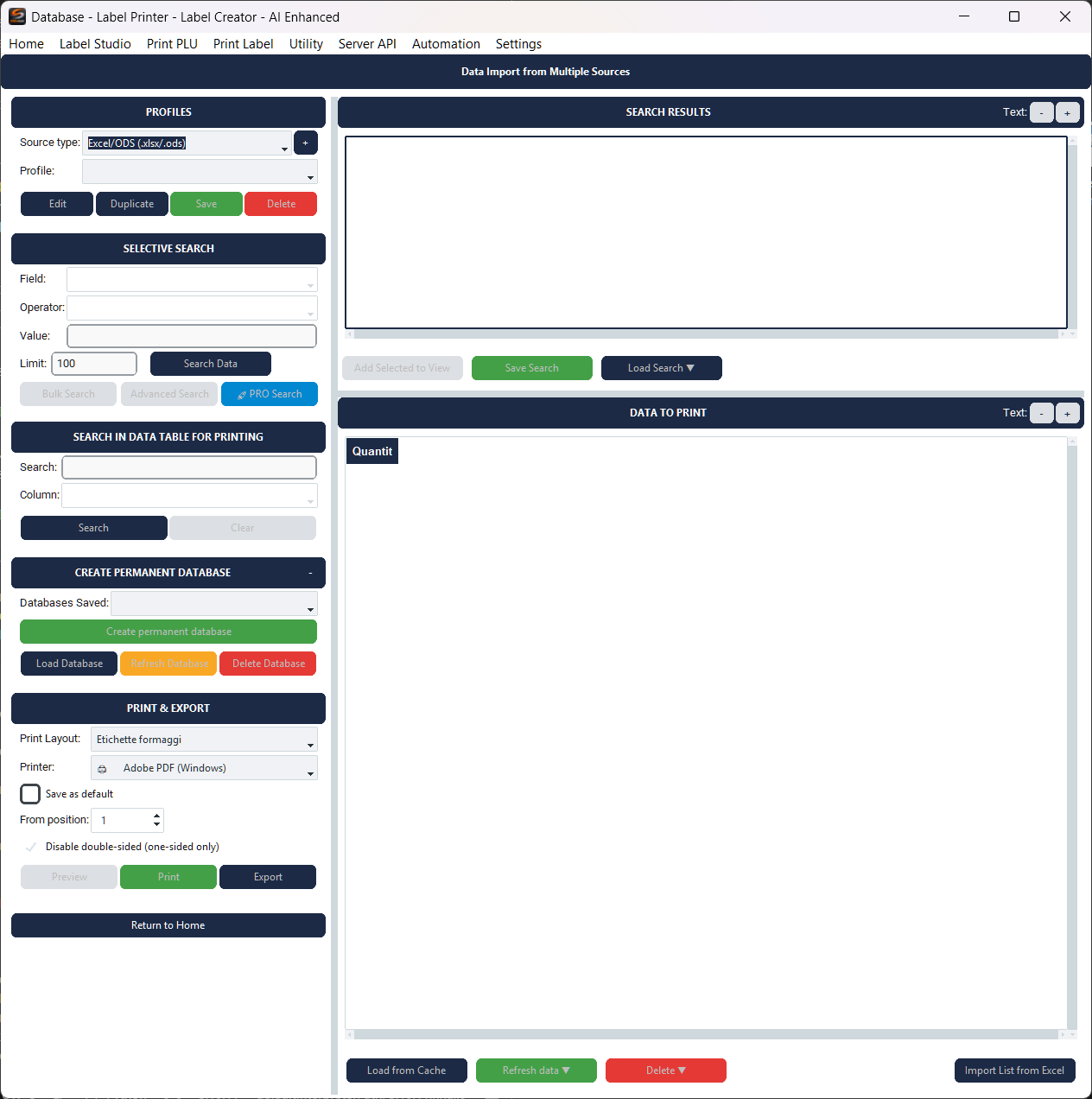
The interface is organized in two columns. On the left management controls (profiles, search, database, print). On the right data tables (search results and print data). Columns are resizable by dragging the separator.
Profiles
- Source type — Dropdown to filter profiles by source type (Excel, CSV, Database, API, etc.).
- + — Create a new connection. Opens the wizard for the connector selected in Source Type.
- Data profile — Dropdown to select the active profile. Each profile is linked to a specific data source.
- Edit — Edit the profile configuration (connection, mapping)
- Duplicate — Create a copy of the selected profile
- Save — Save changes to the profile
- Delete — Delete the selected profile
Selective Search
Search data from the active profile's source.
- Field — The field to search in (e.g. code_num, product_name)
- Operator — Type of comparison: Equals, Not equals, Contains, Starts with, Ends with, Greater than, ≥, Less than, ≤, Is empty, Is not empty
- Value — The term to search for (disabled for «is empty» / «is not empty» operators)
- Limit — Maximum number of results (default: 100, 0 = no limit)
Four search modes:
- Search Data — Execute search with criteria set above
- Bulk Search — Search a list of pasted values (see Bulk search)
- Advanced Search — Multiple criteria combined with AND/OR (see Advanced search)
- PRO Search — Search with parentheses, extended operators and SQL preview (see Pro search)
Data Tables
Search results (upper right table) — Shows records found from data source. Buttons: Add Selected to View (moves results to print table), Save Search, Load Search (with access to saved searches and advanced variants). Resizable font with − / + buttons (from 7 to 14pt).
Print Data (lower right table) — Records ready to print, with Quantity column indicating how many labels to print per record. Buttons: Load from Cache (restore saved data), Update data (selection or all), Delete (selection, obsolete, or clear all), Import List from Excel.
Permanent Database
Allows you to create a local SQLite database with current data for persistent access without depending on external source.
- Create Permanent Database — Save current data in a new local database
- Saved Databases — Dropdown to select a previously created database
- Load DB / Update DB / Delete DB — Management of saved databases
Print & Export
- Print Layout — Select the label template to use (files .lblj created with Label Studio)
- Printer — Select the target printer. Save as default option to remember the choice.
- From position — Starting position on the sheet (for A4 sheets with multiple labels)
- Disable duplex — Force single-sided printing (no duplex)
- Preview — Generate a preview PDF of the labels
- Print — Send to printer. If records are selected, prints only those.
- Export — Export mapped data to an Excel file (.xlsx)
Create Profile
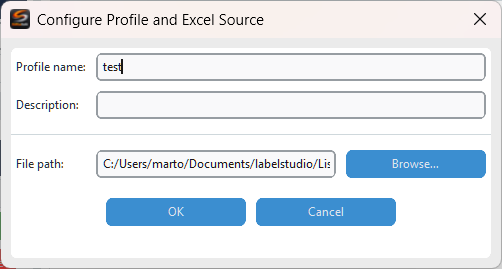
The screenshot shows an example for the Excel connector. Each connector has specific fields. For the complete list and configuration details of each source, see the Data Connectors guide.
After OK, the specific connector guides the next steps: table/sheet selection, data preview, and finally field mapping.
- Connection configuration — Define profile name, description and source-specific parameters (file path, server, credentials, etc.)
- Data selection — Choose the table, sheet or endpoint to use as data source
- Field mapping — Associate source fields with application fields (see section below)
Field Mapping
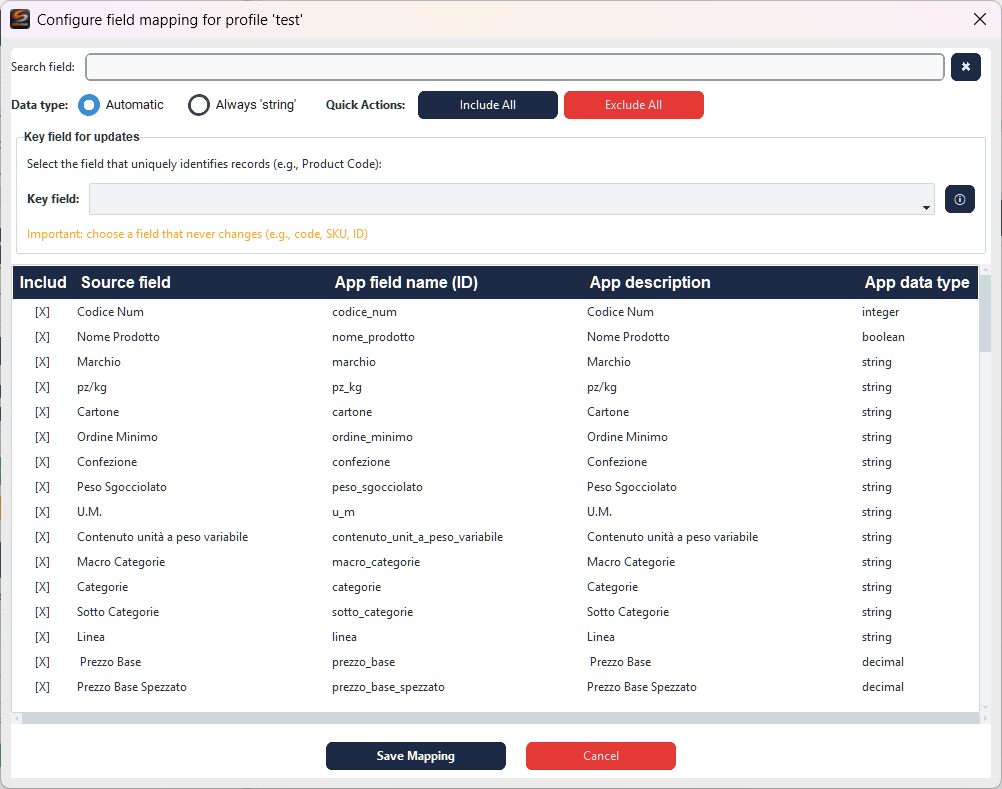
The mapping table links source data fields to the application fields used in label layouts.
- Include — Checkbox to include/exclude individual fields. Use Include All / Exclude All for quick operations.
- Source field — Field name in the original data source
- App field name (ID) — Internal identifier used in label layouts
- App description — Human-readable field description
- App data type — Data type (string, integer, decimal, boolean)
Save Mapping saves the configuration, Cancel cancels.
Context Menu
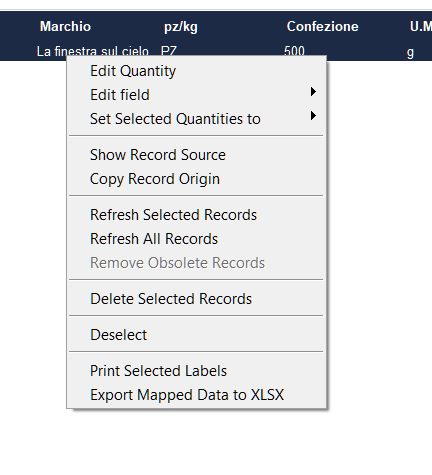
Right-click on one or more records in the table:
- Edit Quantity — Change the label quantity for the selected record
- Edit field — Edit the value of a specific field
- Set Selected Quantities to — Set the quantity for all selected records
- Show Record Source — Show the record's origin in the data profile
- Copy Record Origin — Copy origin information to the clipboard
- Refresh Selected Records — Reload the selected records from the source
- Refresh All Records — Reload all records from the source
- Remove Obsolete Records — Removes records that no longer exist in the source
- Delete Selected Records — Remove selected records from the view
- Print Selected Labels — Print labels for the selected records
- Export Mapped Data to XLSX — Export the mapped data to an Excel file
Right-click on empty area: Select All, Deselect All, obsolete update and removal.
Right-click on column header: Update column for all records or selected ones — useful to update a single field from source without reloading everything.
Batch import from Excel
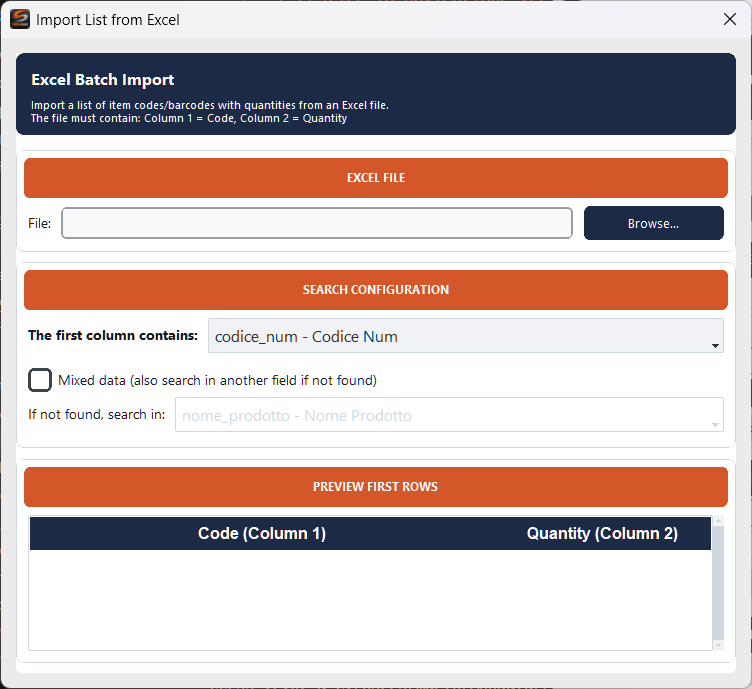
Import a list of codes from an Excel file to bulk-load the corresponding records from the active data profile.
- Excel File — Select the Excel file containing the list of codes via Browse
- Search Configuration — Search field (e.g. product code) and Mixed data option for mixed-format data
- Mixed data — Enable if codes have mixed formats (e.g. numbers and text in same column). Forces text treatment.
- Preview First Rows — Preview of the first rows from the Excel file with code and quantity
At the end of import a summary is shown: records found, not found, and any errors. Found records are added to the Print Data table with specified quantities.
Search
Three search modes to find records in the data profile, from simplest to most powerful.
Advanced search
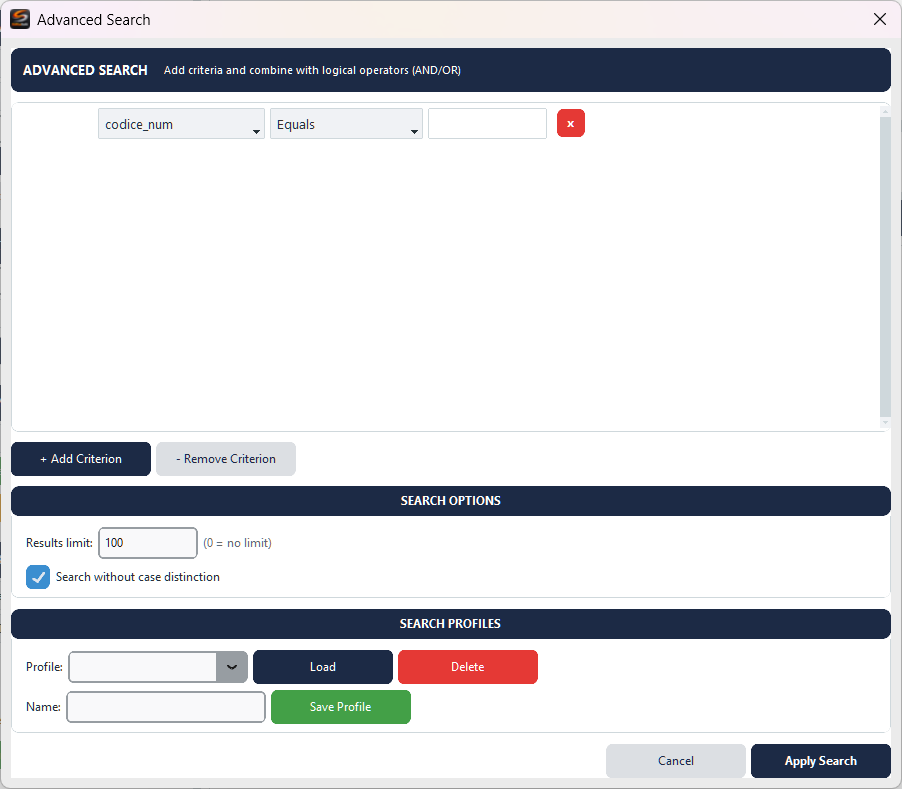
Single-criterion search with configurable filters:
- Dynamic criteria — Add as many criteria as needed with + Add Criterion. Each row has: field, operator, value. For BETWEEN operators a second value field appears.
- Logical operators —
AND(all conditions true),OR(at least one true),XOR(exactly one true) - Comparison operators — Equals, Not equals, Contains, Starts with, Ends with, Greater than, ≥, Less than, ≤, Is empty, Is not empty, BETWEEN, NOT BETWEEN
- Case-insensitive search — Ignores uppercase/lowercase differences
- Result limit — Maximum records to return (0 = unlimited)
- Search profiles — Save current criteria with a name to reuse later. Load or delete saved profiles.
Bulk search

Search multiple values at once. Paste a list of codes (one per line or comma-separated) to find all matching records in a single operation.
- Field and Operator — Shown in header, inherited from selective search
- Text area — Paste values: one per line or comma-separated. Duplicates are automatically removed.
- Value counter — Shows in real-time how many unique values have been entered
- Clean / Search / Undo — After search, if some values are not found, a dialog appears with the list of «not found» items and option to copy to clipboard.
Pro Search

Advanced search with support for complex expressions:
Search Criteria Tab:
- Grouping parentheses — Each criterion can have open/close parentheses to control priority: e.g.
(A AND B) OR C - Logical operators —
AND,OR,NOT,XORfor complex expressions - Extended comparison operators — Beyond the basic ones, includes: IN, NOT IN, CONTAINS ANY, REGEX, DATE RANGE, BEFORE, AFTER
- Validate Parentheses — Check that parentheses are balanced
- Templates — Save and reload frequent queries
- Global Options — Case-insensitive and result limit
Query Preview

The Query Preview tab shows the SQL query generated from the defined criteria:
- Preview Logic — Human-readable representation of the search logic
- Generated SQL Query — Full SQL query generated automatically
- Information — Criteria count, parenthesis status, operators used
- Test Query — Executes the query and shows results
- Export SQL — Copies the SQL query to the clipboard