Fast Print
Set up grids of quick buttons to print labels with a single click. Assign products, layouts and printers to each button to speed up repetitive printing.
Main screen
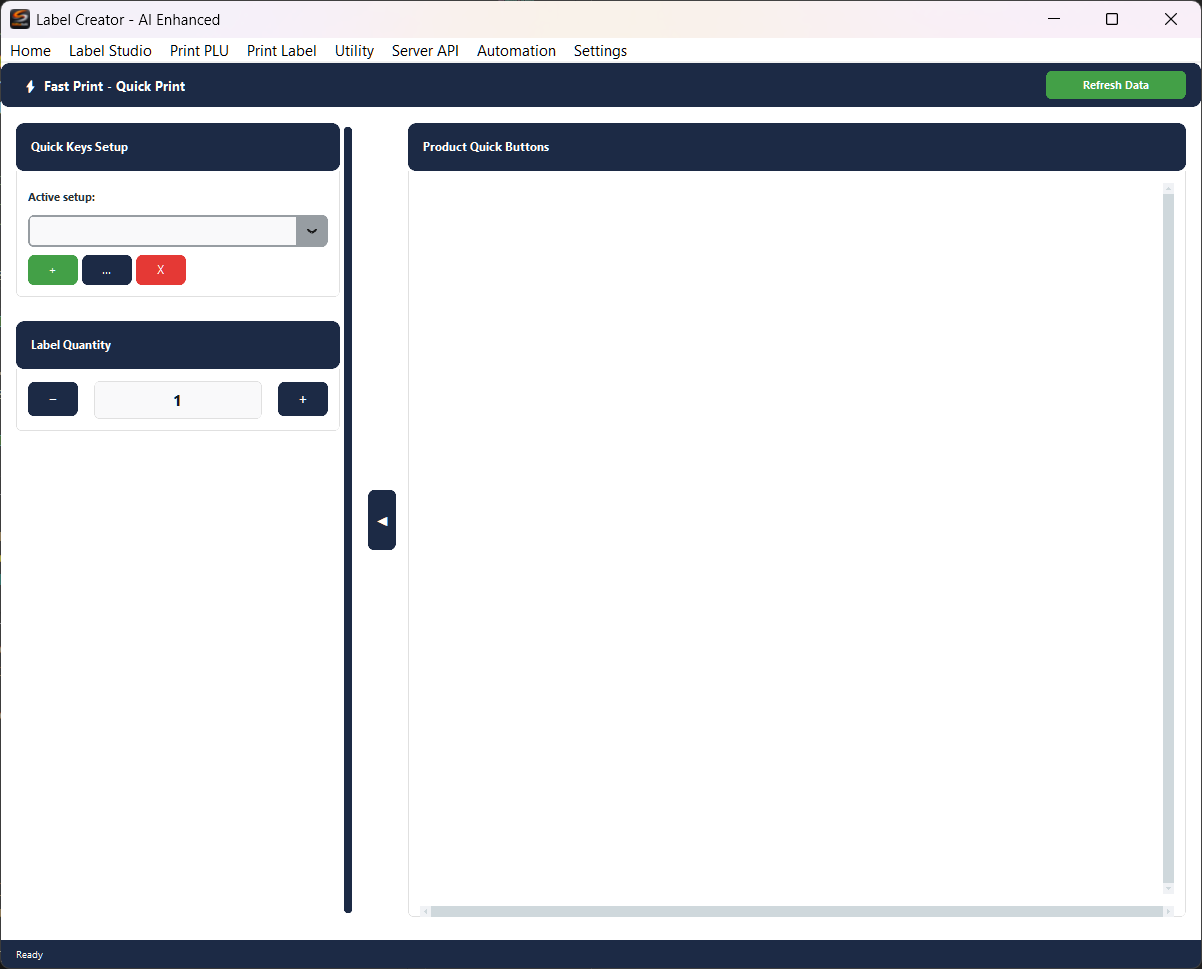
The interface is split into two panels. On the left, the configuration controls; on the right, the product button grid. The ◀ button in the centre hides/shows the left panel to maximise grid space.
Left panel:
- Quick Keys Setup — Dropdown to select the active setup. The + (new), ... (edit) and X (delete) buttons manage setups.
- Label Quantity — Number of labels to print per click. Use − and + or type the value directly.
Right panel:
- Product Quick Buttons — Scrollable grid with the configured product buttons. Click a button to print.
- Refresh Data (green, top right) — Reloads data for all buttons from their respective data profiles.
Button context menu
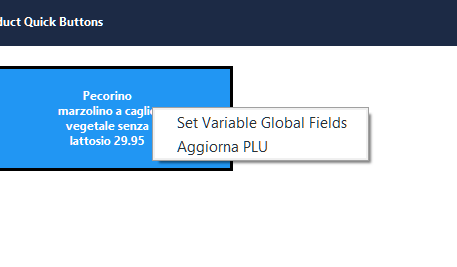
Right-click on a button in the grid:
- Set Variable Global Fields — Opens the dialog to set variable layout fields
- Refresh PLU — Reloads this button's data from the data profile
Variable fields
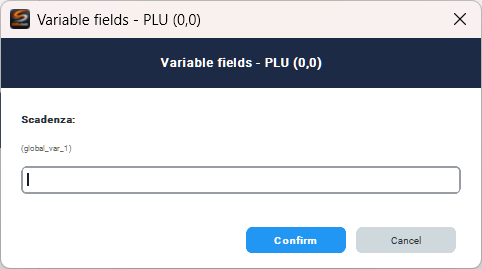
Set values for variable layout fields (e.g. expiry date, batch number) that do not come from the data profile but change each time. The fields shown depend on the label layout assigned to the button.
Free button
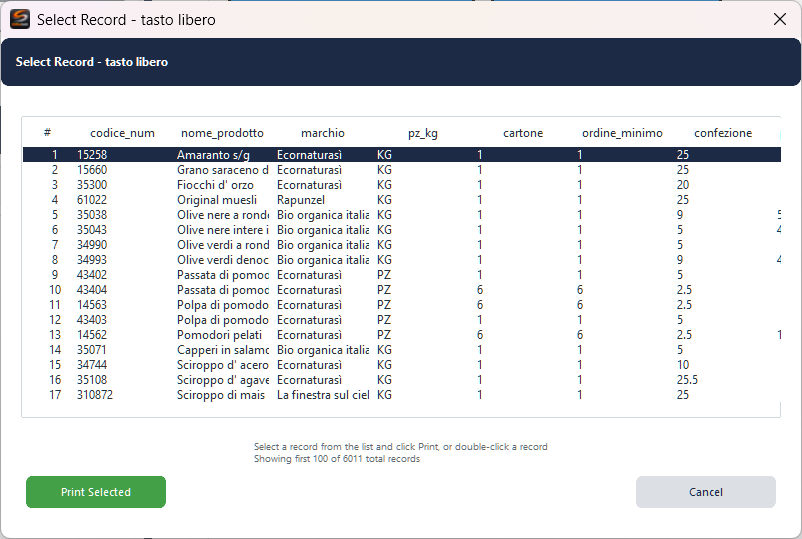
If a button has no pre-assigned record, clicking it opens the record selection window. Select a product from the table and click Print Selected, or double-click a record to print directly.
Use free buttons for products you print occasionally: you can search for them on the fly without occupying a fixed button in the grid.
Configure Grid Setup

Opened from Quick Keys Setup → + (new) or ... (edit). Defines the quick-button grid.
Setup information:
- Name — Setup name (e.g. "cheeses")
- Description — Optional free-text notes
Grid Sizes:
- Rows / Col + Apply dimensions — Updates the grid. Buttons outside the new range are removed after confirmation.
Grid Preview: Click an empty cell = new button. Click an existing button = edit. Right-click = context menu.
Grid context menu
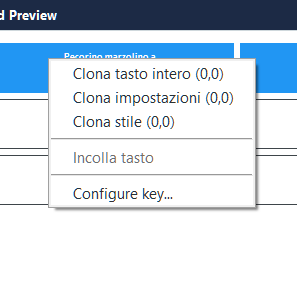
Right-click on a button in the Grid Preview:
- Clone entire button — Copies the full configuration (data + style)
- Clone settings — Copies data settings only
- Clone style — Copies colours only
- Paste button — Pastes the previously copied button
- Configure key... — Opens the full button configuration
Configure Button

Opened from the Grid Preview (click an empty or existing cell, or Configure key... from the context menu).
Basic Information:
- Shortcut name — Static button name (optional if Button name field is used)
Colors:
- Background / Text — Hex code + colour picker
- Default colors — Quick palette. Left-click = background, right-click = text.
Configuration:
- Data profile — Source data profile (Excel, CSV, database)
- Select Record — Assign a specific record to the button (see below)
- Layout — Label template to use (dropdown or Browse...)
- Printer — Target printer
- Button name field — Data profile field to display as the dynamic button name (empty = use static Shortcut name)
- Secondary info field — Field shown below the name (e.g. price)
- Reference field — Field used to find the record when the source file changes (e.g. product code)
The Preview section at the bottom shows the button appearance in real time.
The Reference field is essential when the source data file is updated periodically. It allows the system to automatically find the correct record even if its position in the table changes.
Select Record
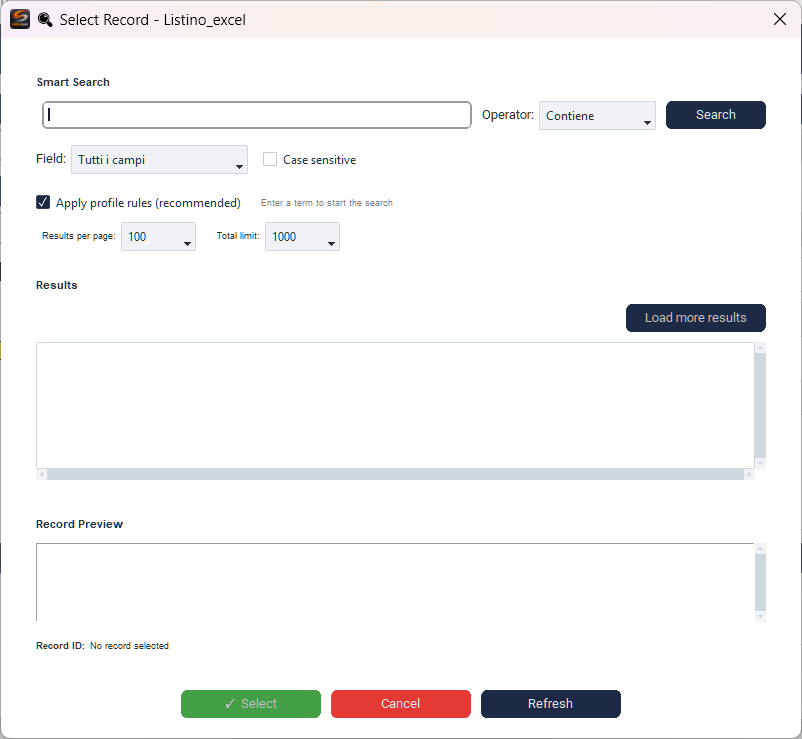
Opened from the Select Record button in Configure Button.
- Smart Search — Type a term and click Search
- Field — Search all fields or a specific one
- Operator — Contains, Equals, Starts with, etc.
- Case sensitive / Apply profile rules — Search options
- Results — Click a record to select it. The table shows the profile data.
- Record Preview — Full details of the selected record
Select confirms, Cancel cancels, Refresh reloads data from the profile.