Application Settings
The Application Settings window centralises every configuration in 10 tabs. Access it from the Settings menu in the main toolbar.
Notices
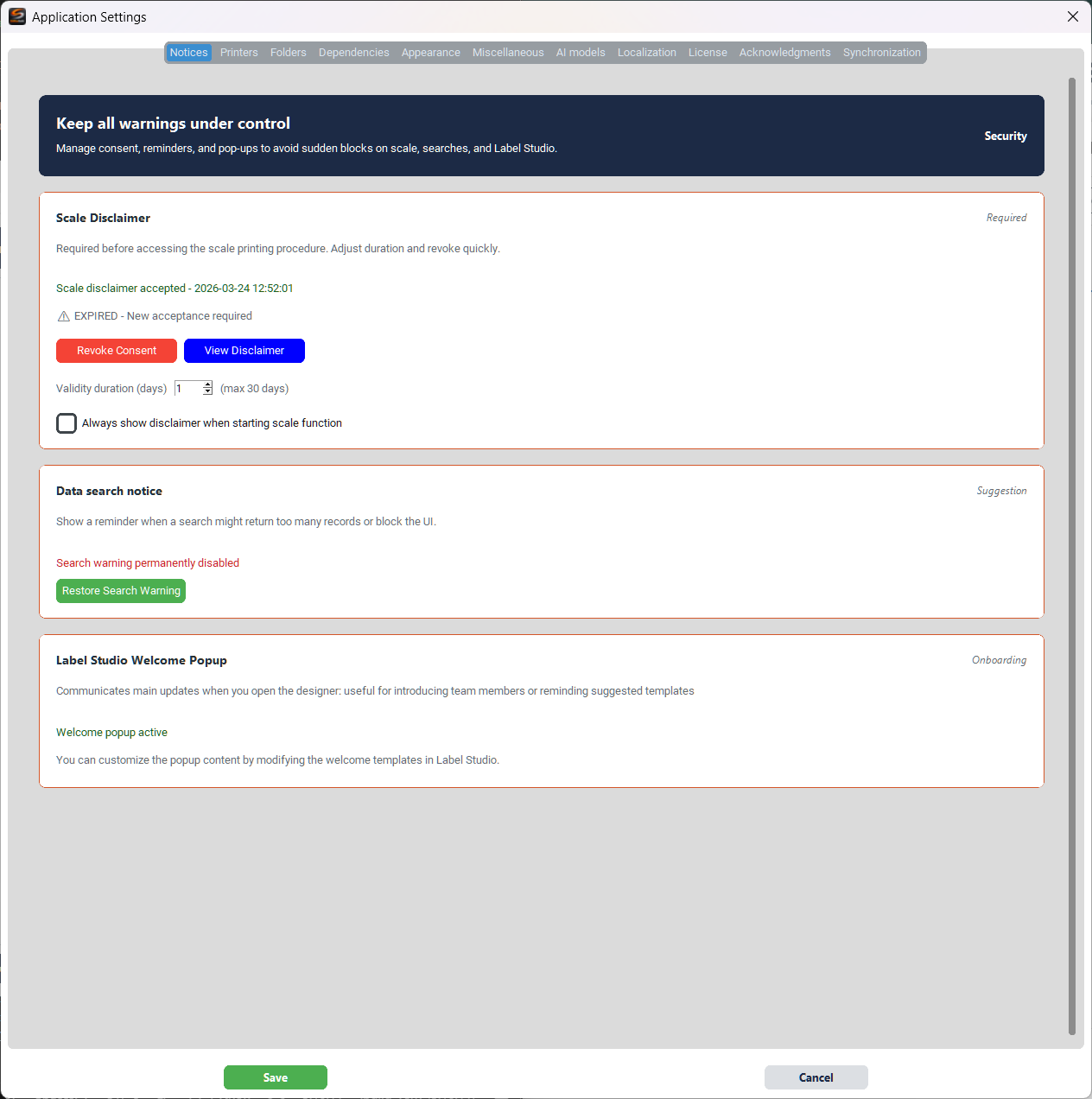
Manage consents, reminders and pop-ups to avoid unexpected interruptions while working.
Stairs Disclaimer
- Revoke Consent — Revokes acceptance of the scale disclaimer, prompting re-acceptance on next opening
- View Disclaimer — Re-read the disclaimer text without revoking it
- Validity duration (days) — Number of days before the disclaimer must be re-accepted (max 30)
- Always show disclaimer — Show the disclaimer every time the scale function is opened
Data search notice
Shows a reminder when a search might return too many records and freeze the interface. If permanently disabled, use Restore Search Warning to re-enable it.
Label Studio Welcome Popup
Communicates key updates when the designer opens. Useful for presenting updates to the team or reminding about suggested templates. The content is customised by editing the welcome templates in Label Studio.
Printers
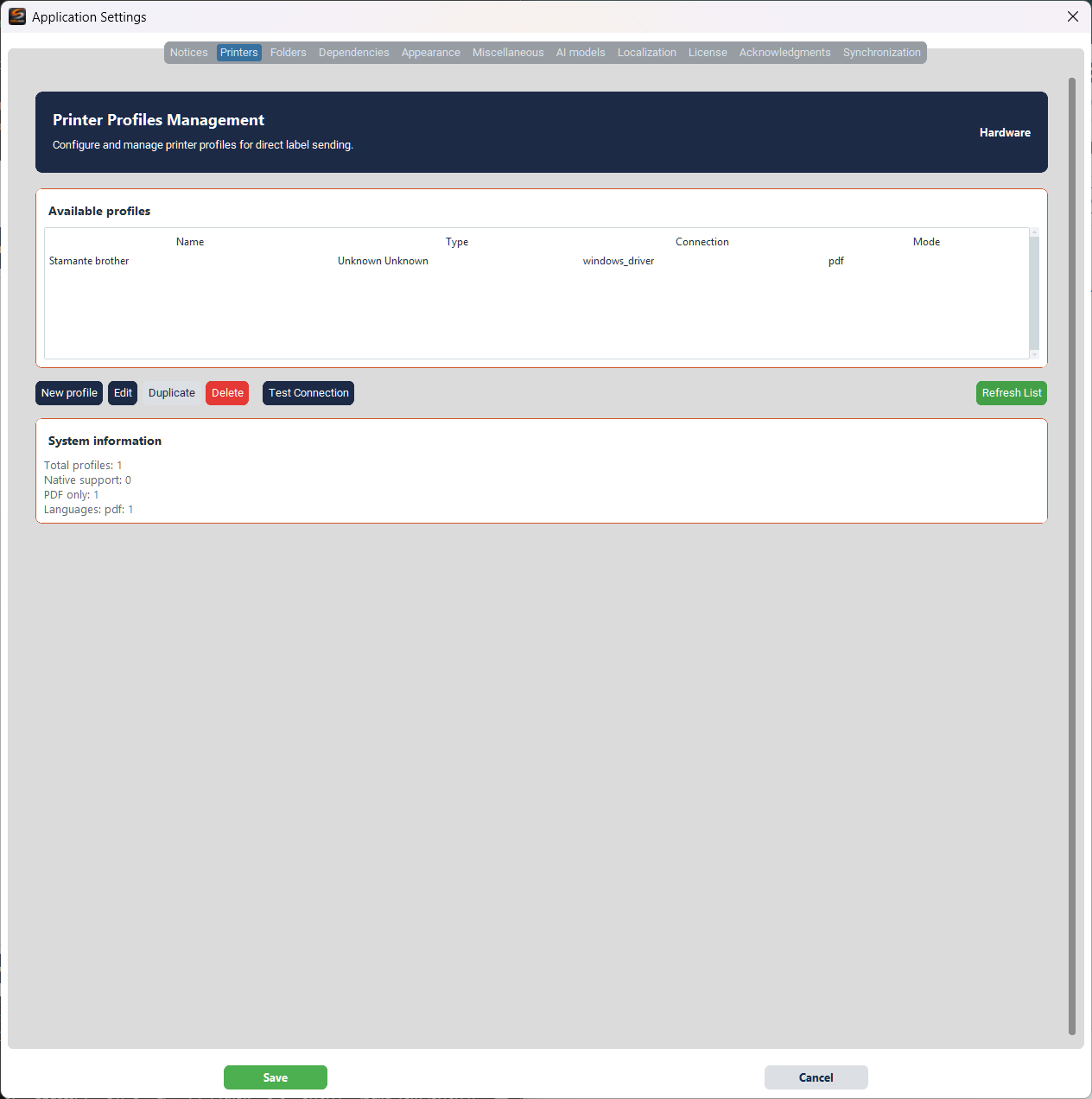
Configure and manage printer profiles for direct label printing.
Each printer profile combines the physical device with format settings (label size, margins) and print settings (copies, quality). Create different profiles for different label sizes on the same printer.
Available profiles
The table displays all configured profiles with the columns Name, Type, Connection and Mode.
- New profile — Create a new printer profile
- Edit — Edit the selected profile
- Duplicate — Duplicate the selected profile
- Delete — Delete the selected profile
- Test Connection — Test the connection to the printer
- Refresh List — Refresh the profile list
System information at the bottom shows the profile count, native support and languages used.
Printer profile configuration
The profile creation/editing window has three tabs: Configuration, Format and Print & Advanced.
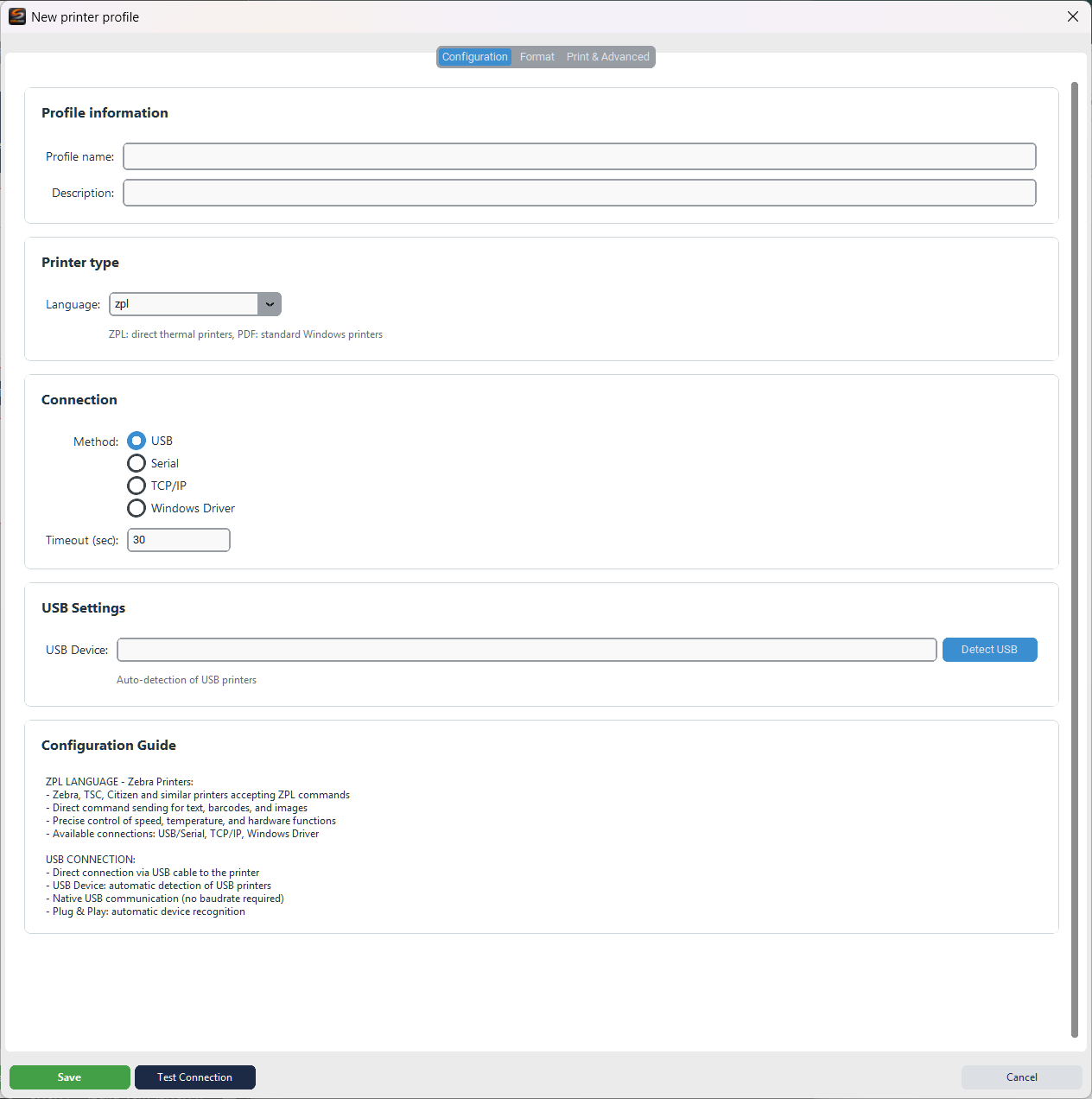
Configuration:
- Profile information — Profile name and description
- Printer type — Language: ZPL (direct thermal printers) or PDF (standard Windows printers)
- Connection — Method: USB, Serial, TCP/IP or Windows Driver. Configurable timeout.
- USB Settings — USB device with automatic detection (Detect USB)
- Configuration Guide — Contextual guide with details on the selected language and connection
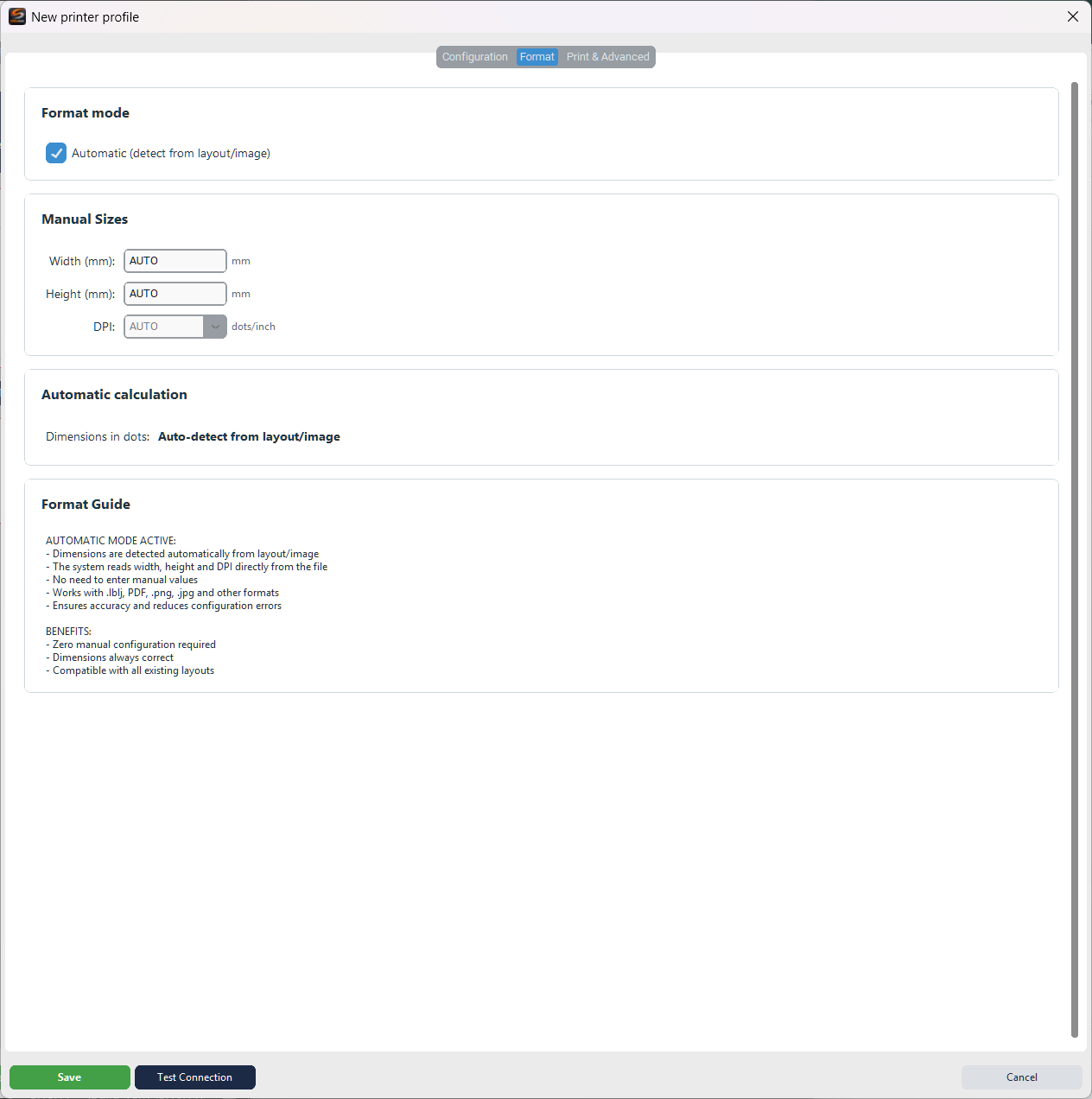
Format:
- Format mode — Automatic (detects from layout/image) or manual
- Manual Sizes — Width, height (mm) and DPI
- Automatic calculation — Dimensions in dots calculated automatically from the layout
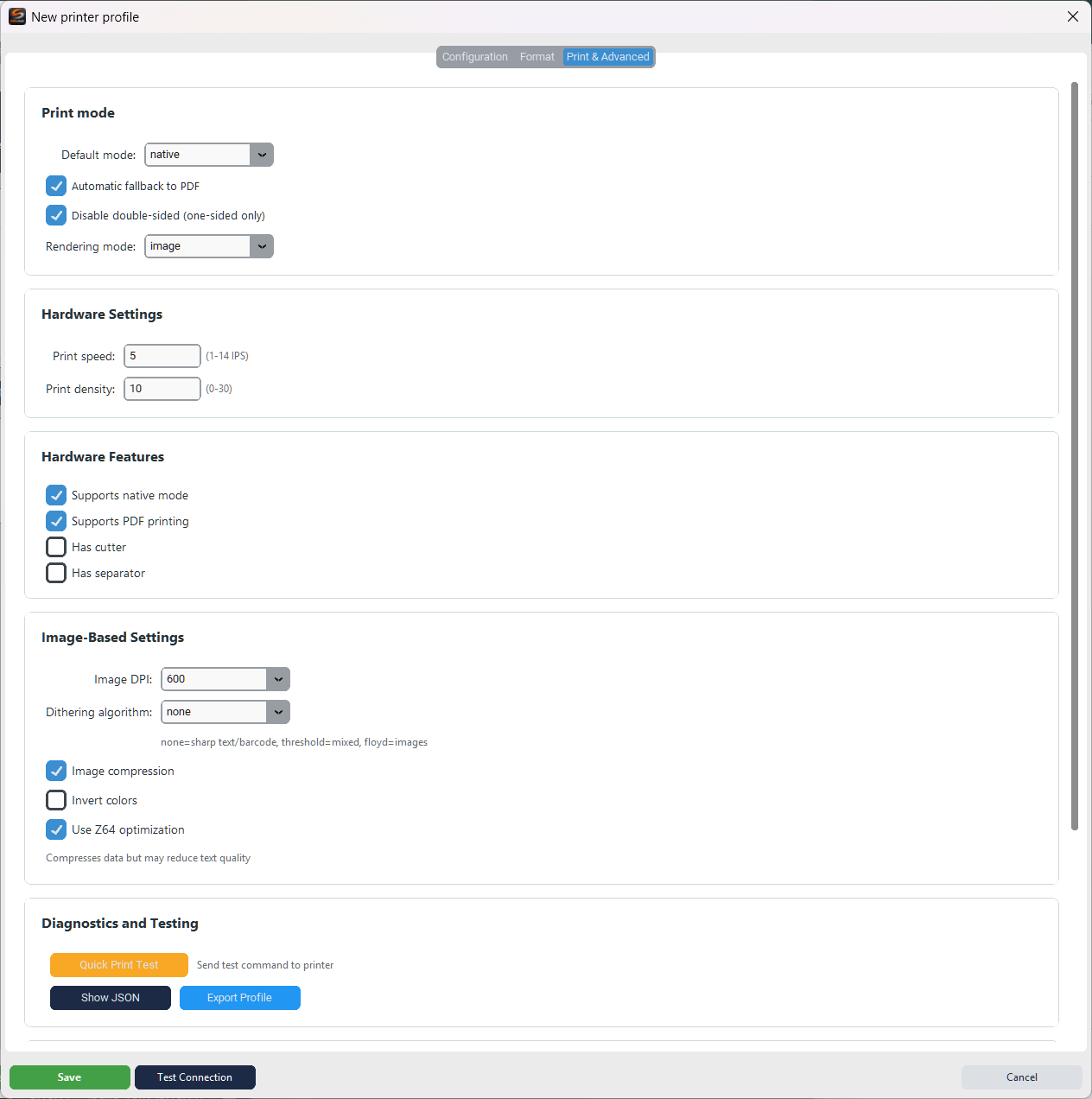
Print & Advanced:
- Print mode — Default mode (native/pdf), automatic fallback to PDF, duplex, rendering mode
- Hardware Settings — Speed (1–14 IPS) and print density (0–30)
- Hardware Features — Native support, PDF, cutter, peeler
- Image-Based Settings — Image DPI, dithering, compression, colour inversion, Z64 optimisation
- Diagnostics and Testing — Quick Print Test, Show JSON, Export Profile
Folders
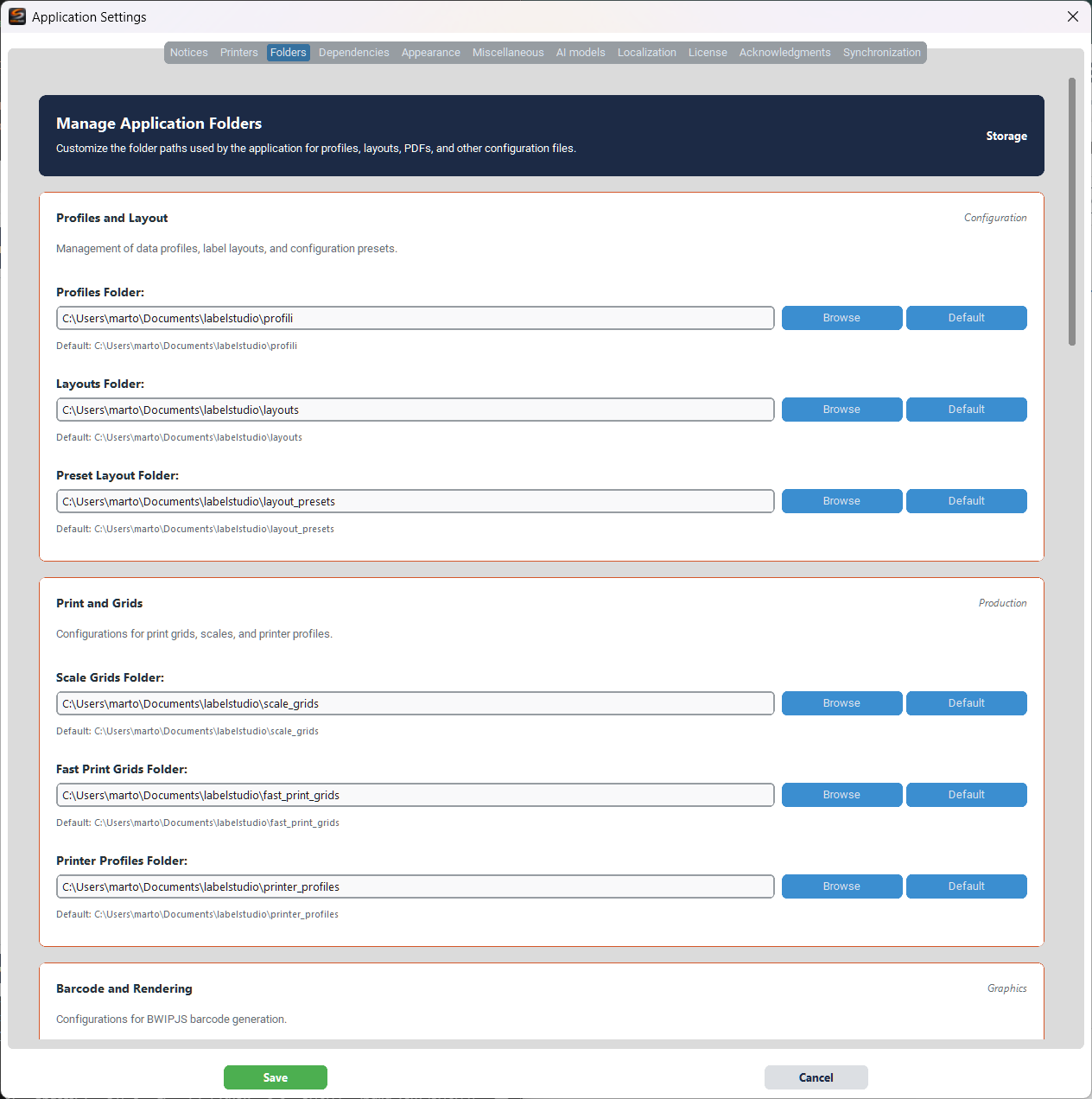
Customise the folder paths used by the application for profiles, layouts, PDFs and configuration files.
Profiles and Layout
- Profiles Folder — Data profiles folder
- Layouts Folder — Label layouts folder
- Preset Layout Folder — Pre-configured layouts folder
Print and Grids
- Scale Grids Folder — Scale grids
- Fast Print Grids Folder — Fast print grids
- Printer Profiles Folder — Printer profiles
Barcode and Rendering
Configuration for the BWIPP barcode generation paths.
Dependencies
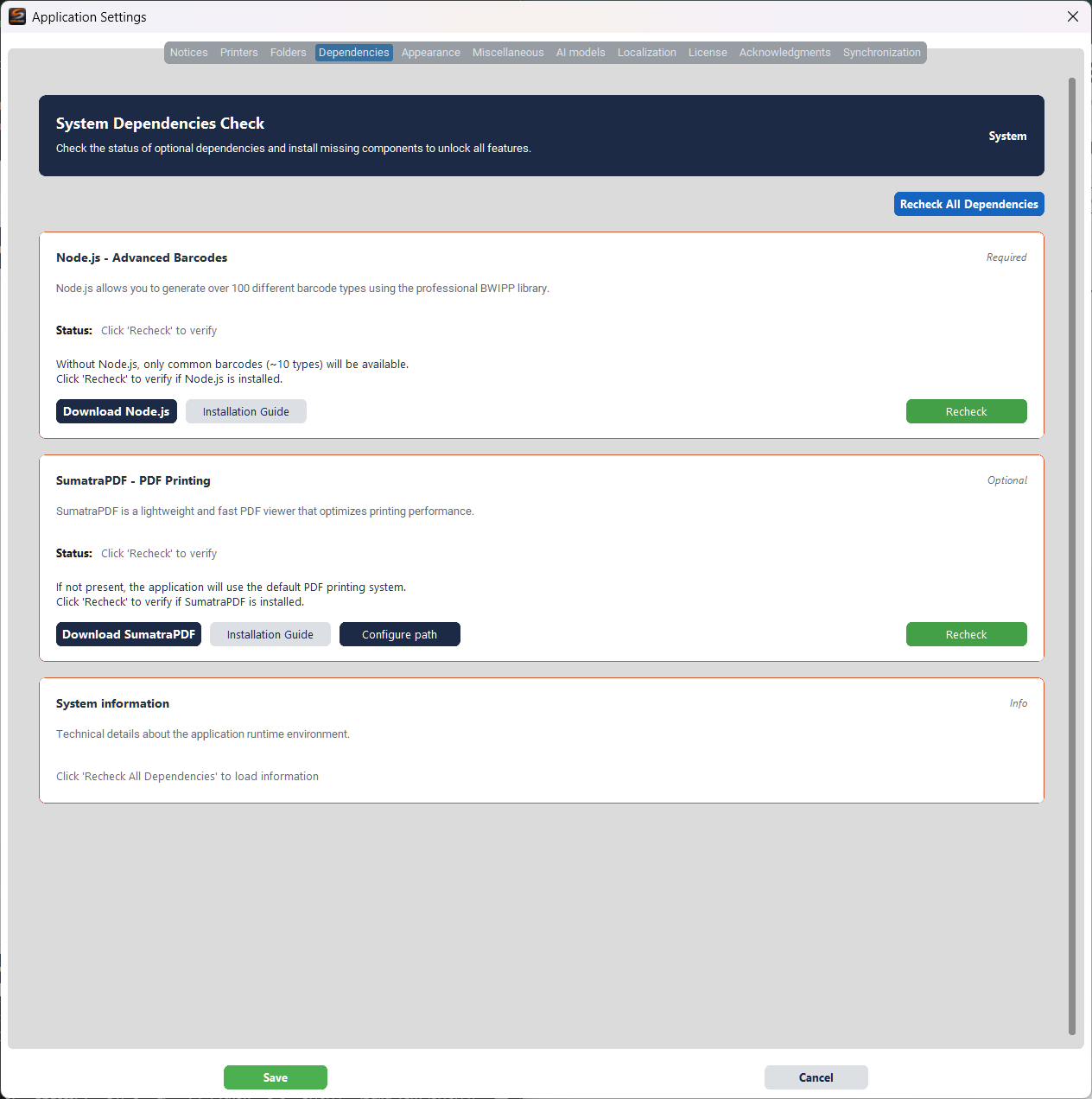
Check the status of optional dependencies and install missing components to unlock all features.
Install Node.js if you need to generate advanced barcodes (over 100 types available). For standard printing, optional dependencies are not required.
Node.js — Advanced Barcodes
Node.js enables the generation of over 100 different barcode types via the professional BWIPP library. Without Node.js, only the ~10 most common types will be available. Buttons: Download Node.js, Installation Guide, Recheck.
SumatraPDF — PDF Printing
Lightweight, fast PDF viewer that optimises print performance. Optional: if absent, the application uses the default PDF printing system. Buttons: Download SumatraPDF, Installation Guide, Configure path, Recheck.
System information
Technical details about the runtime environment. Click Recheck All Dependencies to refresh all statuses.
Appearance
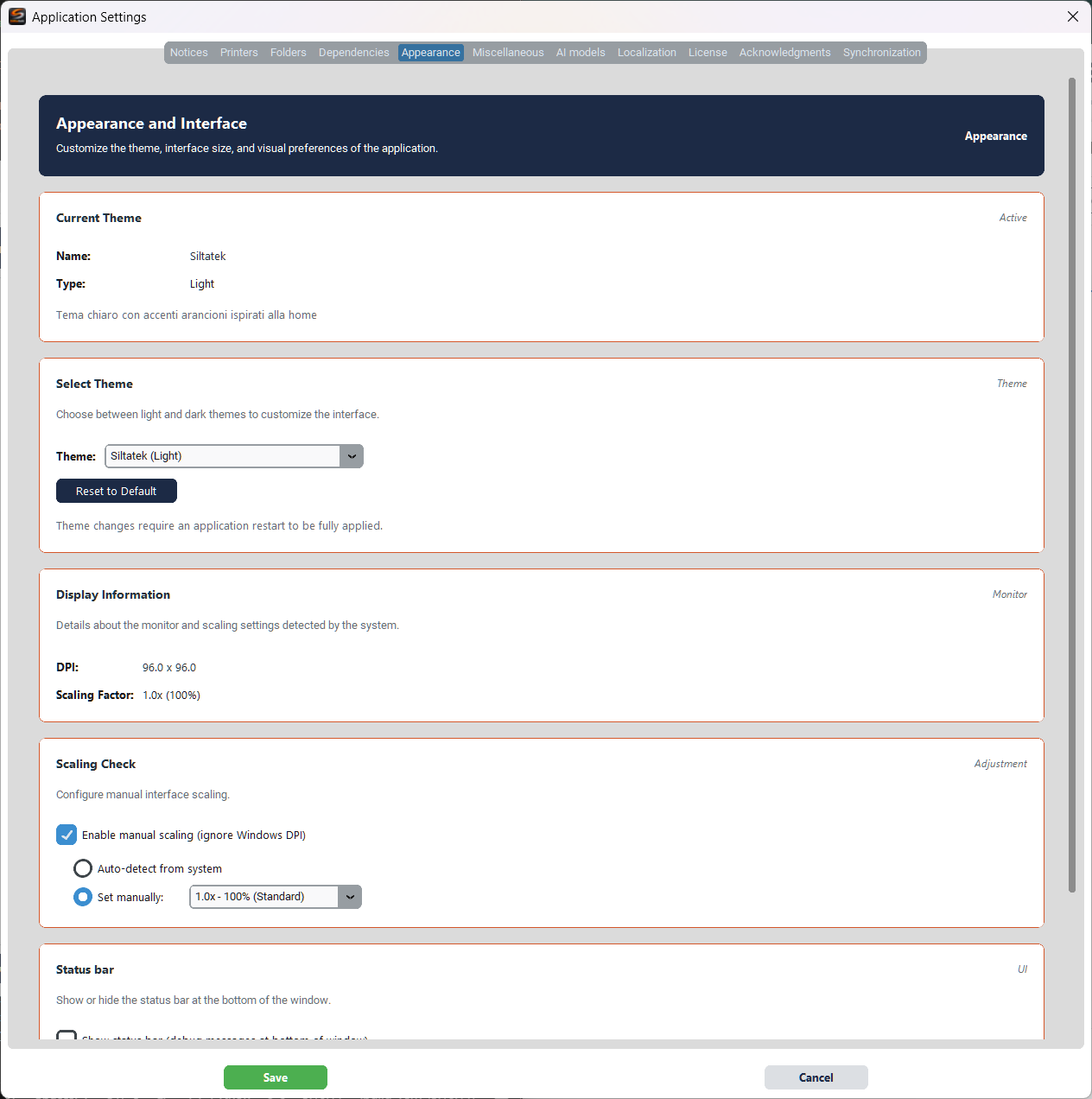
Customise the theme, interface size and visual preferences of the application.
Current Theme
Shows the name and type (Light/Dark) of the active theme.
Select Theme
Choose between light and dark themes from the Theme dropdown. Changes require an application restart. Reset to Default restores the default theme.
Display Information
Shows the DPI and Scaling Factor detected by the system.
Scaling Check
Configure manual interface scaling. Enable Enable manual scaling (ignore Windows DPI) to override system settings. Options: auto-detect or manual value from the dropdown.
Status bar
Show or hide the status bar with debug messages at the bottom of the window.
Miscellaneous
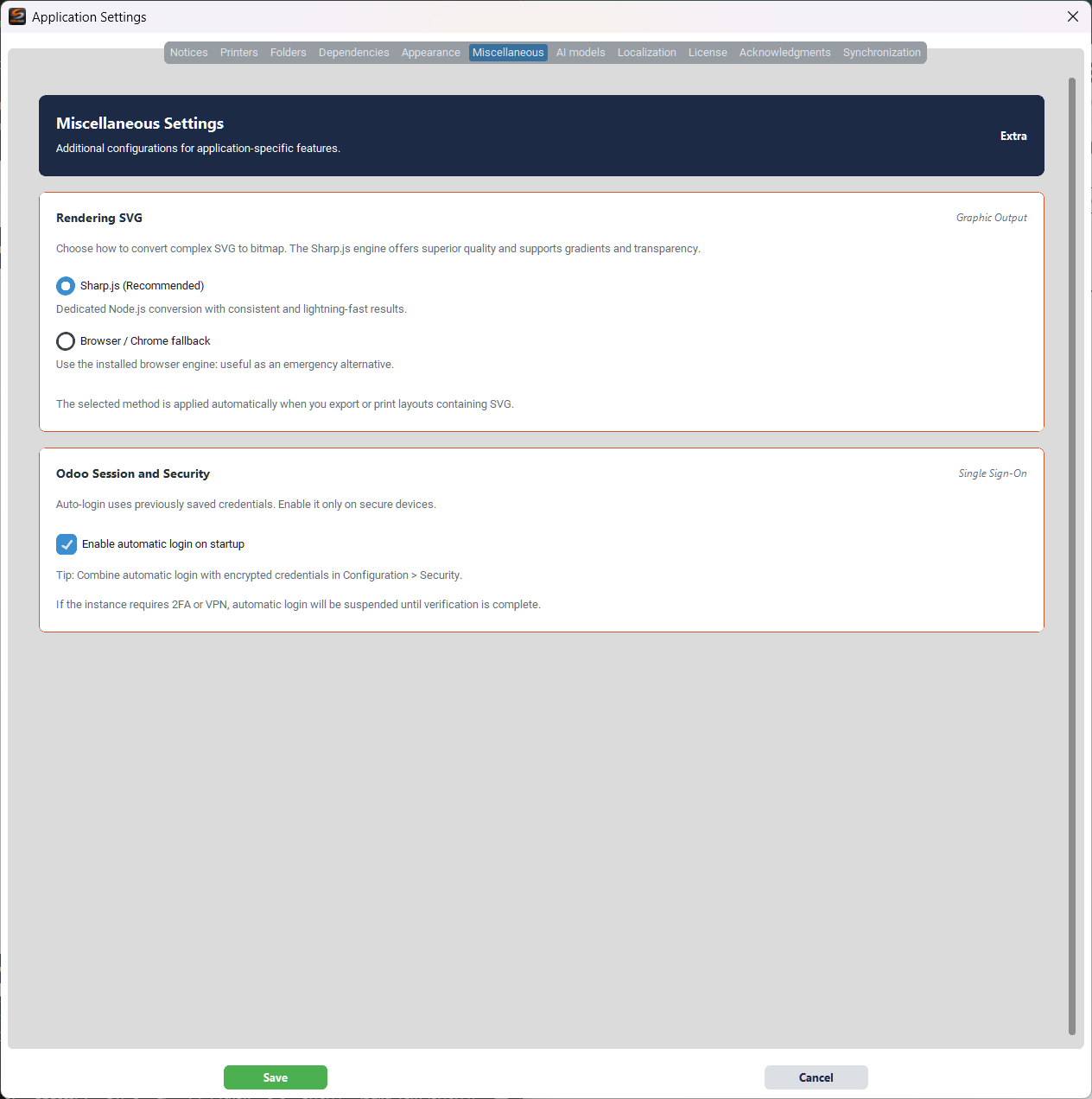
Additional settings for specific application features.
SVG Rendering
- Sharp.js (Recommended) — Dedicated conversion via Node.js with consistent and very fast results. Supports gradients and transparency.
- Browser / Chrome fallback — Uses the installed browser engine. Useful as an emergency alternative.
The selected method is applied automatically when you export or print layouts containing SVG.
Odoo Session and Security
Auto-login uses previously saved credentials. Enable it only on secure devices. If the instance requires 2FA or VPN, auto-login will be suspended until verification is completed.
AI Models
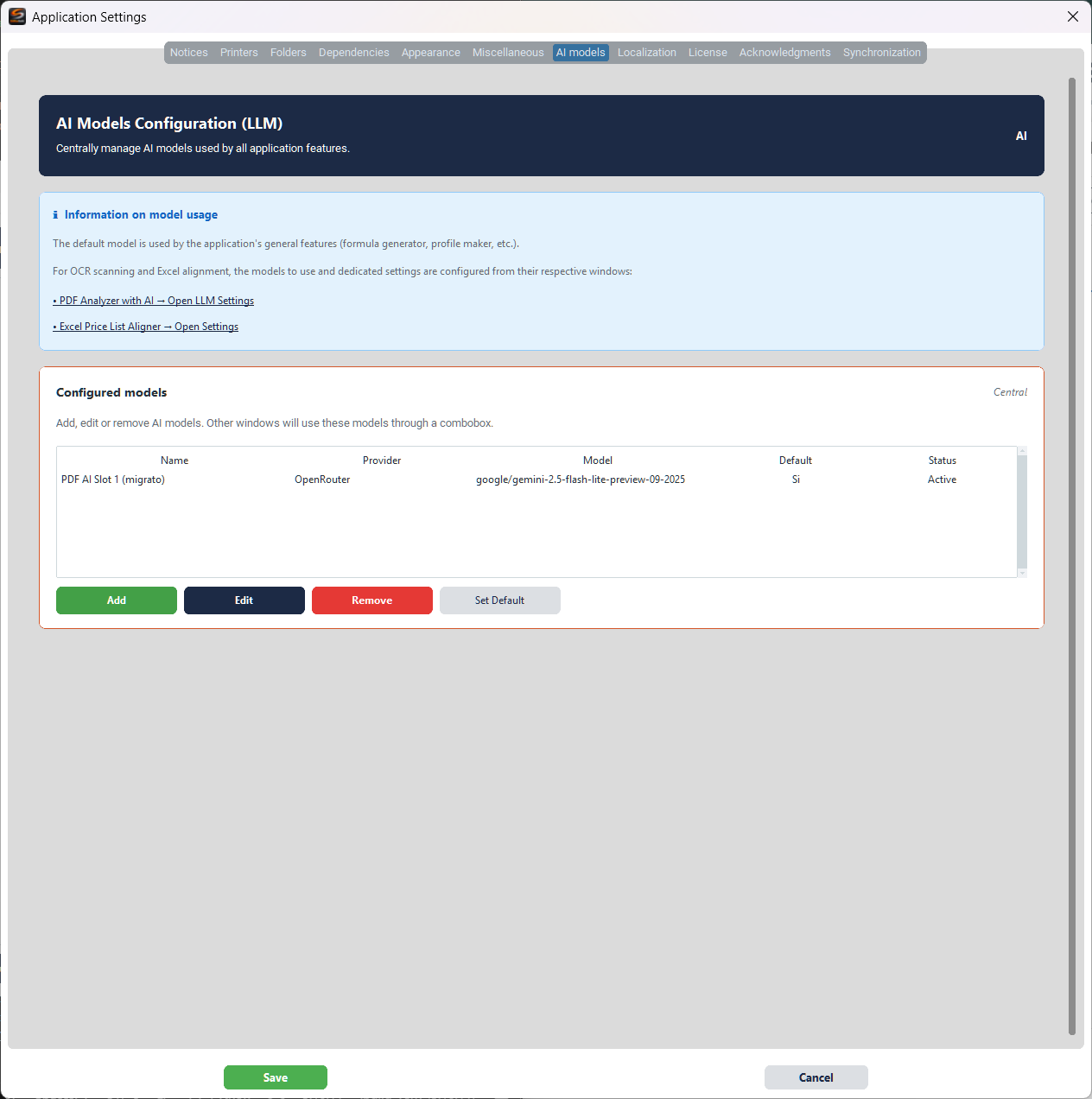
Centrally manage the AI models (LLM) used by all application features.
Model usage information
The default model is used by general features (formula generator, profile maker, etc.). For OCR scanning and Excel alignment, models are configured from their respective dedicated windows.
Configured models
The table displays configured models with the columns Name, Provider, Model, Default and Status.
- Add — Add a new AI model
- Edit — Edit the selected model
- Remove — Remove the selected model
- Set Default — Set the selected model as default
Localisation
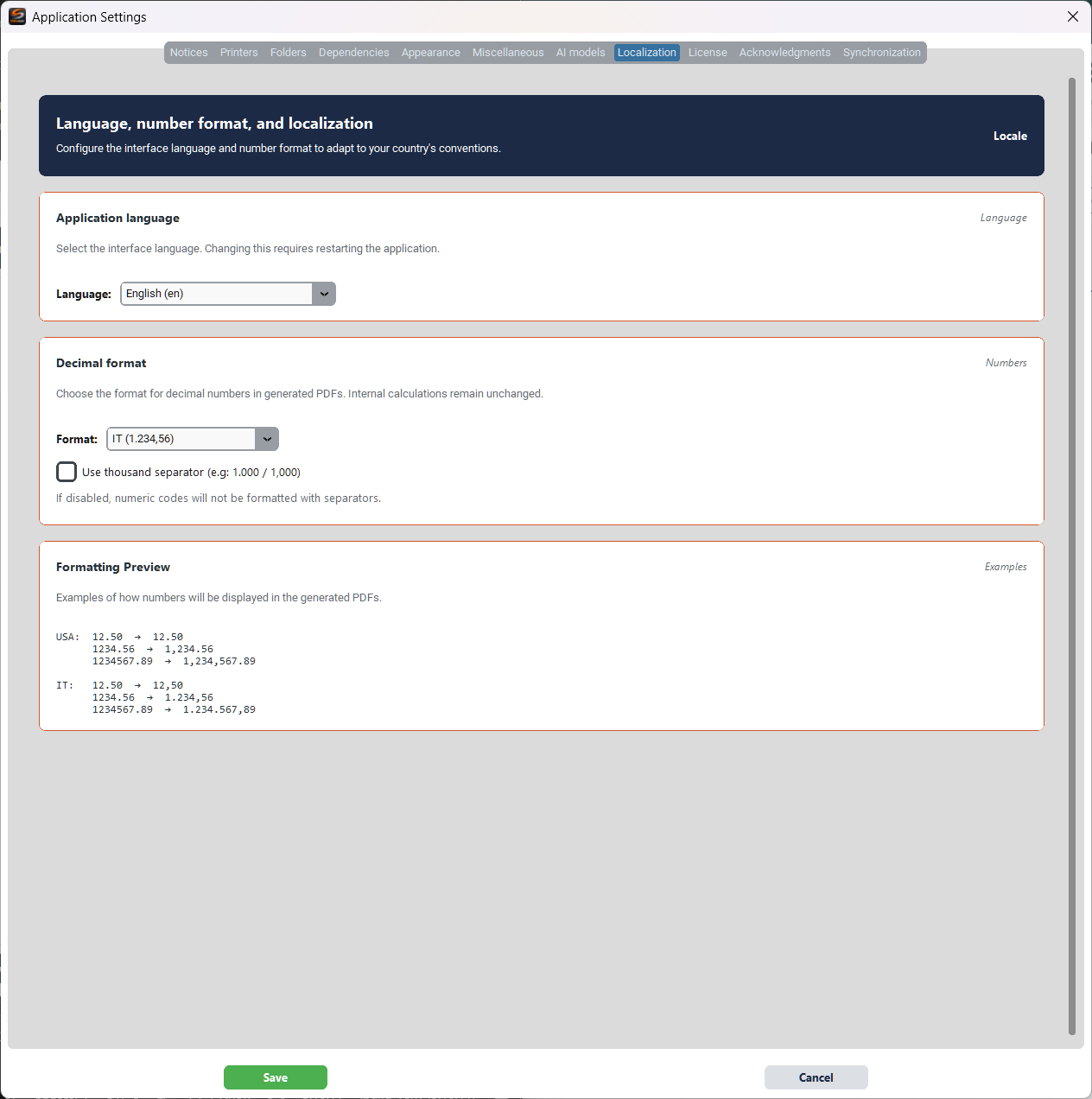
Configure the interface language and number format to match your country’s conventions.
Application language
Select the interface language from the dropdown. The change requires an application restart.
Decimal format
- Format — Choose the format (e.g. IT: 1.234,56 or USA: 1,234.56)
- Use thousand separator — If disabled, numeric codes will have no separators
Formatting Preview
Shows examples of how numbers will appear in generated PDFs, comparing USA and IT formats.
Synchronisation
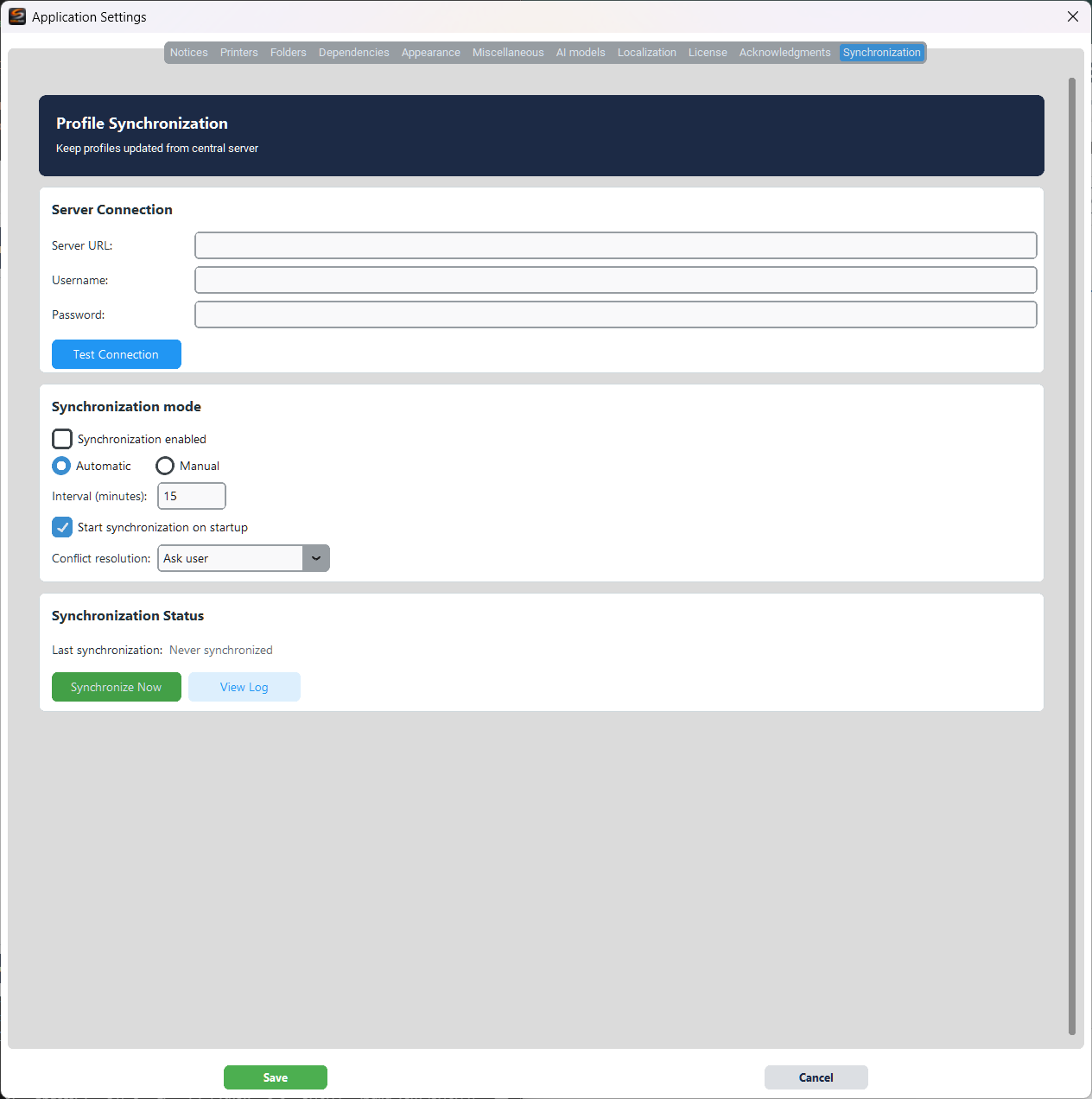
Keep profiles up to date from a central server.
Server Connection
- Server URL — Synchronisation server address
- Username / Password — Login credentials
- Test Connection — Test the server connection
Synchronisation mode
- Synchronization enabled — Enable/disable synchronisation
- Automatic / Manual — Synchronisation mode
- Interval (minutes) — Interval between automatic synchronisations
- Start synchronization on startup — Start synchronisation when the application opens
- Conflict resolution — How to handle conflicts (Ask user, Server wins, Local wins)
Synchronisation Status
- Synchronize Now — Start an immediate synchronisation
- View Log — View the log of previous synchronisations