Scale
Connect a scale to your computer to print labels with automatically detected weight. Set up product grids to print with a single click.
When opening the Scale feature, a mandatory legal disclaimer is shown. The weighing function does not have metrological certifications (MID, NTEP, OIML) and is intended exclusively for internal and private use. Using it for weight-based commercial transactions may be illegal in your jurisdiction. The user must accept the conditions before proceeding; the disclaimer is periodically shown again.
Main screen
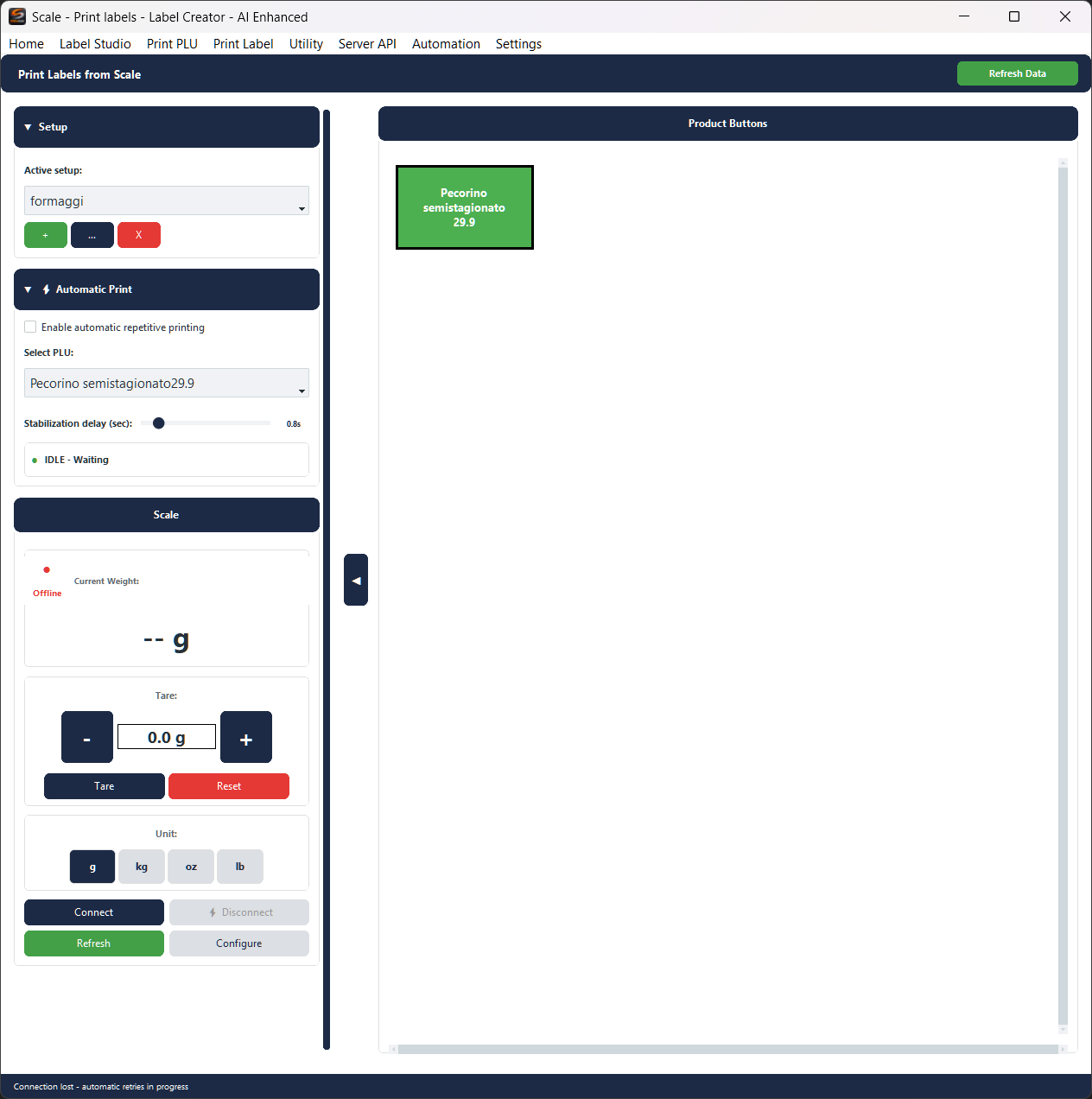
On the left are the scale controls, on the right is the product button grid. The ◀ button in the centre hides/shows the left panel.
The ▼ Setup and ▼ Automatic Print panels are expandable by clicking their header. At the bottom: scale controls (weight, tare, unit) and connection buttons.
Weight and Tare
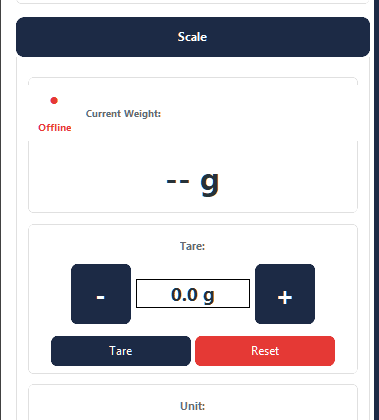
- Current Weight — Net weight in real-time (gross minus tare)
- Tare / Reset — Tare sets tare to current weight. Reset clears it.
- - / + — Adjusts tare in fixed increments. Click the value to enter it directly.
- Unit — g, kg, oz, lb. Weight and tare convert automatically.
- Connect / Disconnect — Starts or stops scale connection.
- Refresh — Reloads data for all product buttons from their respective data profiles.
- Configure — Opens the connection configuration window (see below).
Button context menu
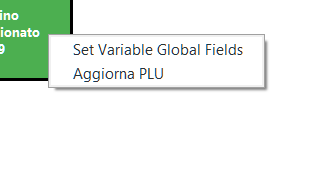
Right-click on a button in the grid:
- Set Variable Global Fields — Opens the global variable fields window
- Refresh PLU — Reloads this button's data from the data profile
Variable fields
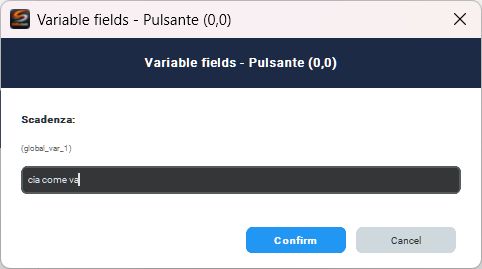
Set values for variable layout fields (e.g. expiry date, batch number) that do not come from the data profile but change each time. The fields shown depend on the label layout assigned to the button.
Print without weight
If the scale is offline when you click a product button:
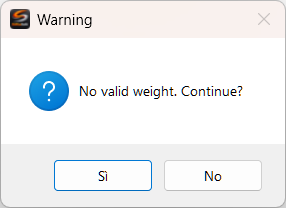
Click Yes to proceed with weight 0, No to cancel.
If the button has no pre-assigned record, the selection window opens:
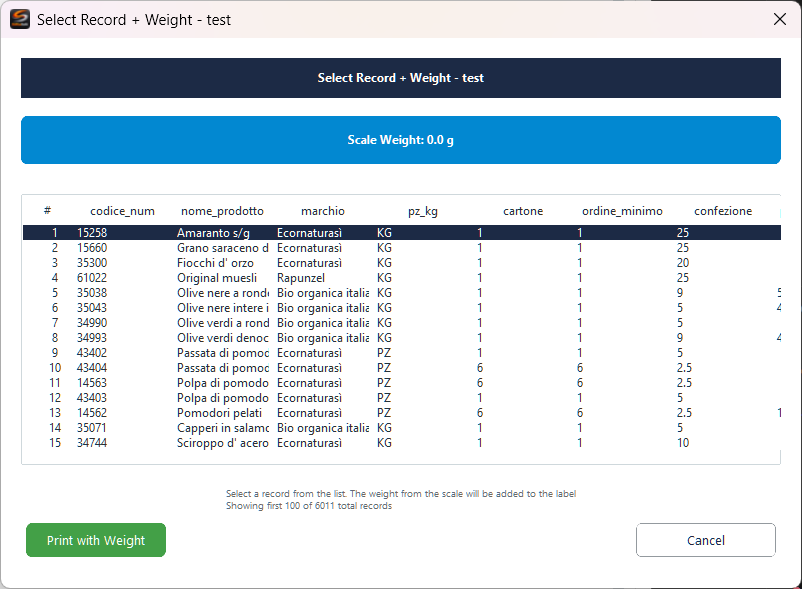
Shows the current weight and the data profile record table. Select a record and click Print with Weight. If the button has a pre-assigned record, printing starts directly.
Configure — Scale connection
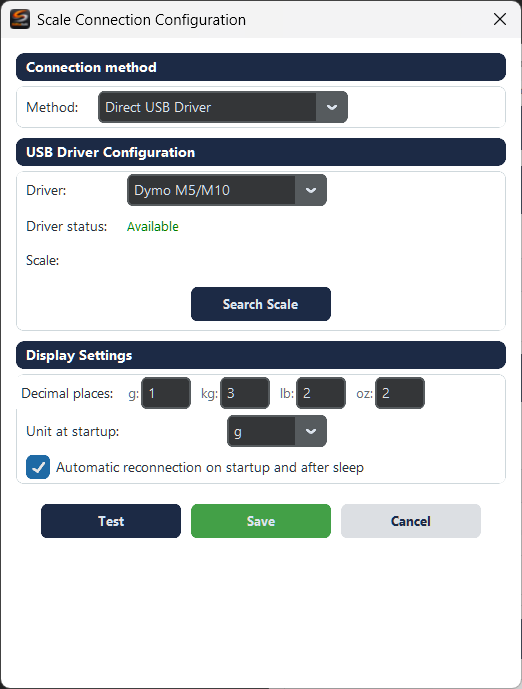
Connection method:
- REST API Server — Scales via intermediate server. Fields: Base API URL, Weight Endpoint, Status Endpoint, Timeout.
- Direct USB Driver — Dymo M5/M10 scales via USB. Fields: Driver, Driver status, Scale, Search Scale.
Display Settings: Decimal places per unit, Unit at startup, Automatic reconnection.
Test checks connection, Save saves, Cancel cancels.
Configure Grid Setup
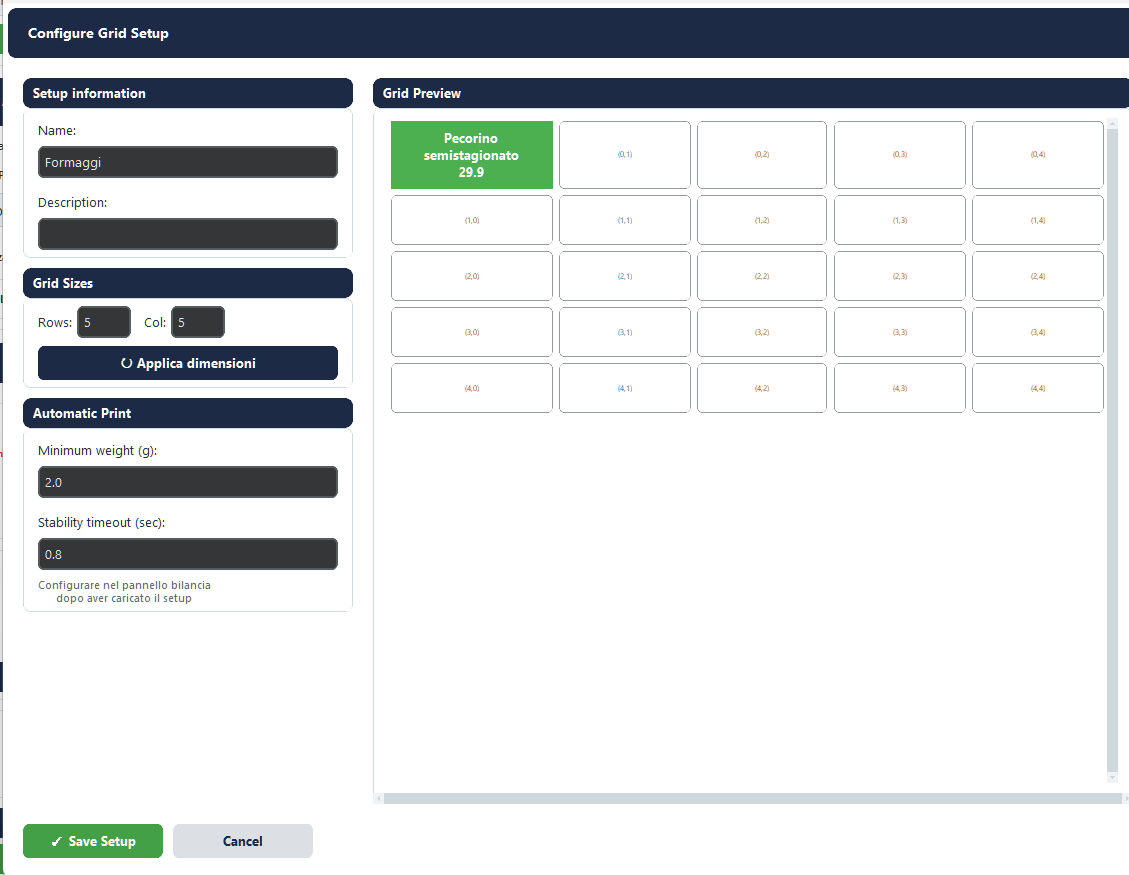
Opened from Setup → + (new) or ... (edit). Defines the product button grid.
Setup information:
- Name — Grid name
- Description — Free-text notes
Grid Sizes:
- Rows / Col + Apply dimensions — Updates the grid (buttons outside the range are removed with confirmation)
Automatic Print:
- Minimum weight (g) — Minimum weight to trigger automatic printing (default: 2g)
- Stability timeout (sec) — Required stability (default: 0.8s)
Grid Preview: Click empty cell = new button. Click button = edit. Right-click = context menu.
Grid context menu
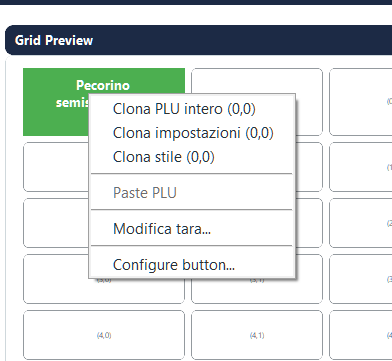
Right-click on a button in the Grid Preview:
- Clone entire PLU — Copies full configuration (data + style)
- Clone settings — Copies data settings only
- Clone style — Copies colours only
- Paste PLU — Pastes the previously copied button
- Edit tare... — Quick tare edit
- Configure button... — Opens full configuration
Edit Tare
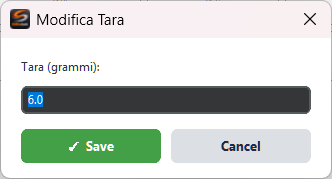
Quick tare edit for the button without opening Configure Button. Value in grams.
Configure Button
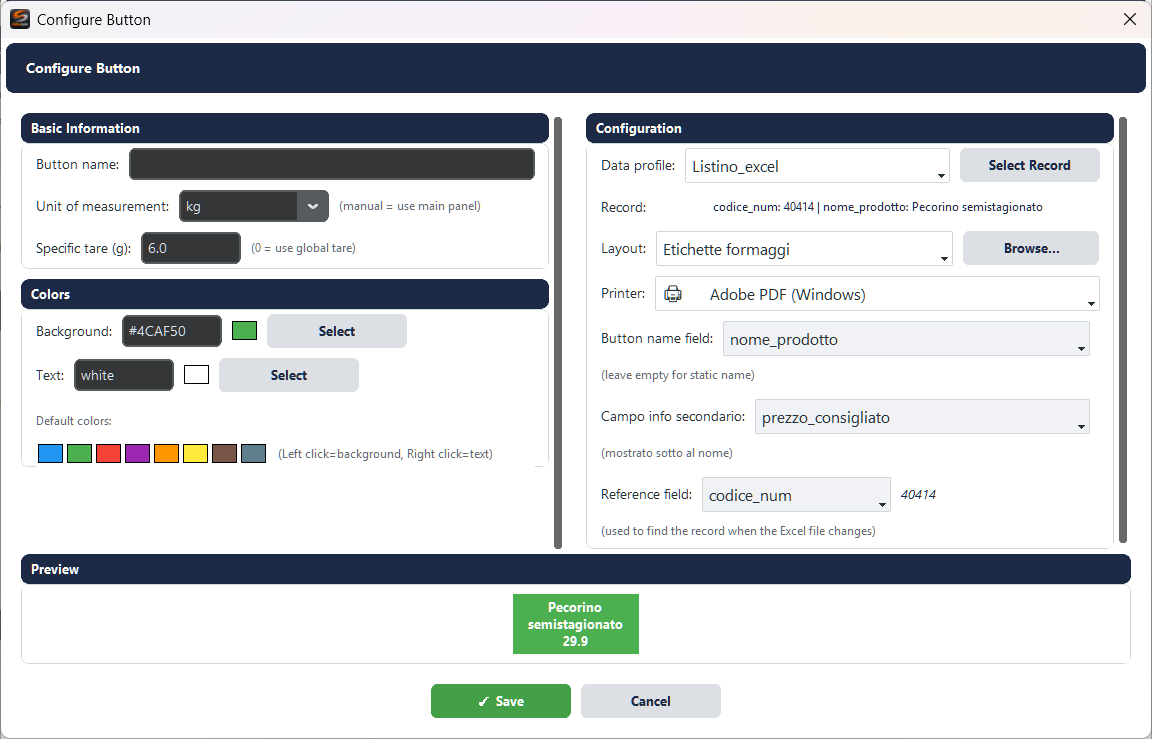
Opened from the Grid Preview (click a cell, or Configure button... from the context menu).
Basic Information:
- Button name — Static button text
- Unit of measurement —
manual= panel unit; or force g/kg/oz/lb - Specific tare (g) — Dedicated tare (0 = global tare)
Colors:
- Background / Text — Hex + colour picker
- Default colours — Quick palette (left-click = background, right-click = text)
Configuration:
- Data profile — Data profile (Excel, CSV, database)
- Select Record — Assign a specific record (see below)
- Layout — Label template (dropdown or Browse...)
- Printer — Target printer
- Button name field — Dynamic name from profile field (empty = static name)
- Secondary info field — Shown below the name (e.g. price)
- Reference field — Field to find the record when the source file changes
Preview at the bottom shows the button appearance in real time.
Select Record
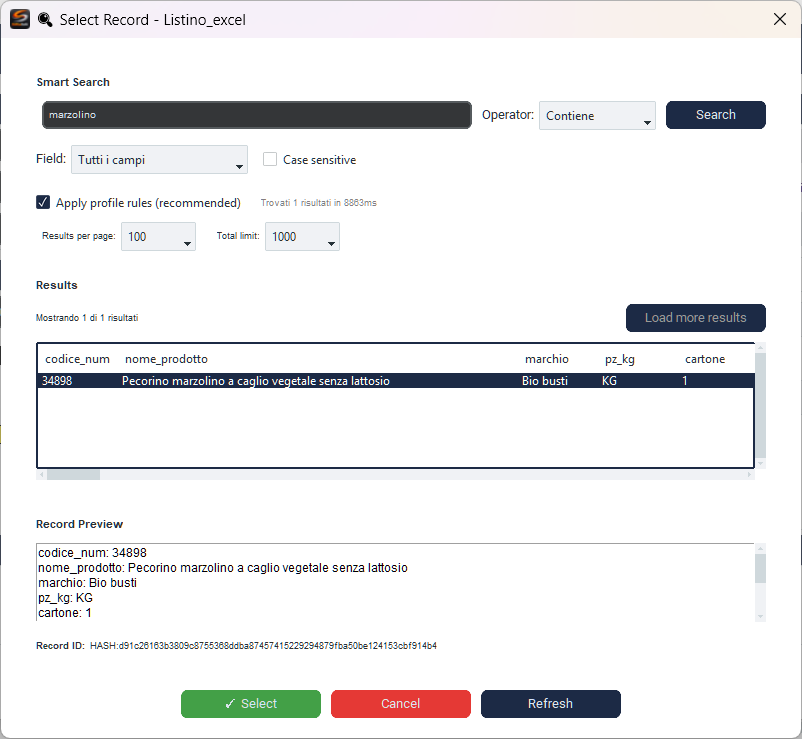
Opened from the Select Record button in Configure Button.
- Smart Search — Type a term and click Search
- Field — Search all fields or a specific one
- Operator — Contains, Equals, Starts with, etc.
- Case sensitive / Apply profile rules
- Results — Click a record to select it
- Record Preview — Details of the selected record
Select confirms, Cancel cancels, Refresh reloads.
Additional information
Weight calculation in label
Weight in label = gross weight − global tare − button-specific tare, converted to button unit (if different from manual).
Automatic printing
Detects when an object is placed on the scale and prints automatically:
- Expand ▼ Automatic Print
- Check Enable automatic repetitive printing
- Select the PLU from the dropdown
- Adjust the Stabilization delay
LED indicator: ● IDLE — ● COUNTDOWN — ● WAITING REMOVAL
Refresh Data
Refresh Data (green, top right) reloads data for all buttons from their data profiles, using the Reference field to find records.
Connection methods
Two methods available, configurable from the Configure window:
- REST API Server — Scales connected via intermediate server (e.g. Raspberry Pi with API)
- Direct USB Driver — Dymo M5/M10 scales connected directly via USB