AI PDF Analyzer
Extract structured data from PDF documents using artificial intelligence models. Define custom extraction profiles and export results to Excel.
Main screen
The interface is organized into 3 tabs (File Selection, Results, Processing Log) and two fixed sections at the bottom: Processing Options and Processing Status.
File Selection

The PDF FILES section shows the table of loaded files with the columns File Name, Pages and Status.
Statistics at the bottom of the table: Total files, Total pages, Files processed.
- Add Files — Adds one or more PDF files to the processing queue
- Remove Selected — Removes the selected files from the list
- Export PDF Text — Exports the raw text extracted from PDFs (without AI processing)
- Update Statistics — Recalculates the table statistics
Processing Options
The PROCESSING OPTIONS section controls how the AI processes the documents:
- Select Profile — Extraction profile to use (defines the fields to extract)
- Pages per request — Number of pages sent in each request to the AI model
- Process each page separately — Sends each page as an individual request
- Process each document separately — Processes each document independently
- Start Processing — Starts AI processing of the loaded files
- Pause — Temporarily suspends processing
- Stop — Completely stops processing
The PROCESSING STATUS bar at the bottom shows the processing progress in real time.
Results

The Results tab displays the data extracted by the AI in a structured table. The columns correspond to the fields defined in the extraction profile (e.g. File, Page, date, debits, credits, Transaction description).
- Export to Excel — Exports all results to an Excel file (.xlsx)
Processing Log

The Processing Log tab records every operation performed during processing: API requests, responses, errors and timing. Useful for diagnostics and debugging.
Processing PDF documents with AI consumes tokens. Documents with many pages can generate significant costs. Use “Pages per request” to control how many pages are sent in each API call.
LLM Settings
The LLM Settings window configures the AI models and batch processing parameters. It opens from the main screen menu.
LLM Models
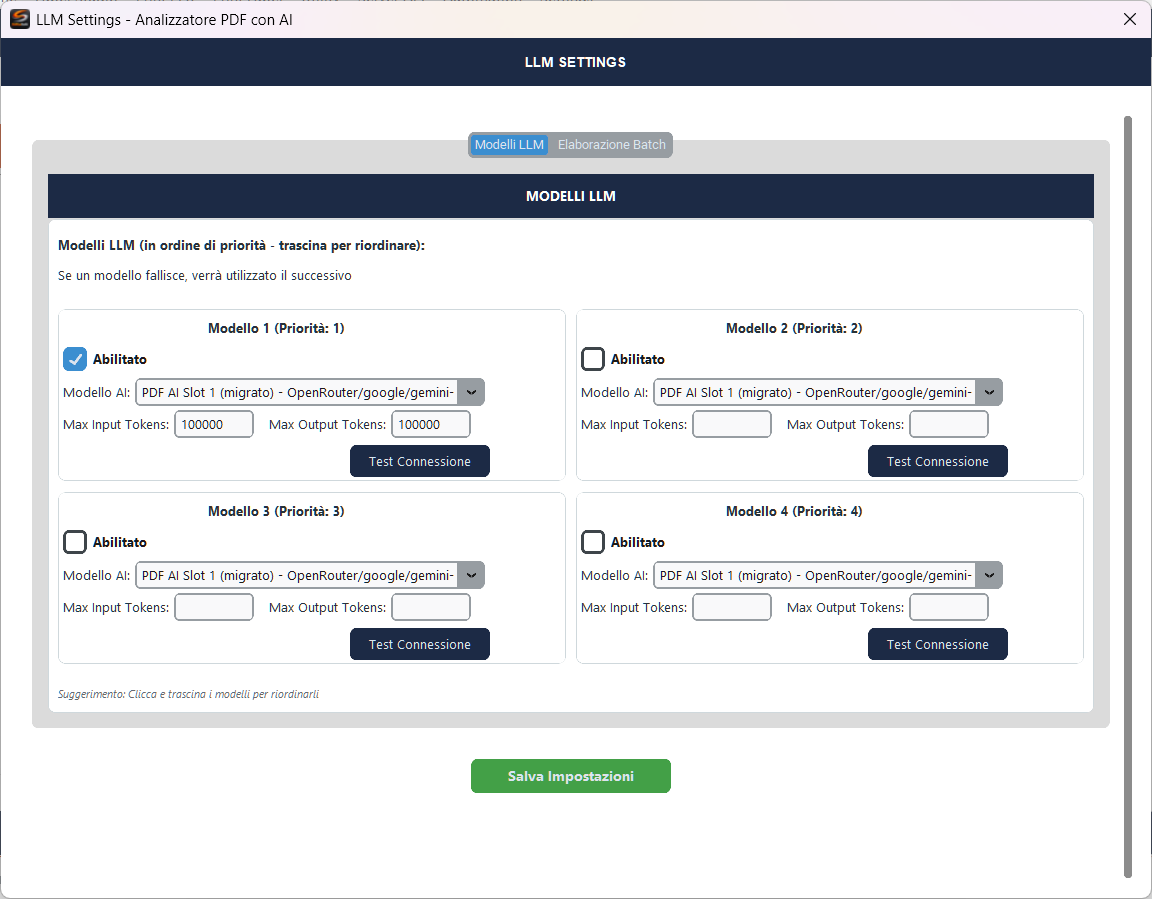
The LLM Models tab manages up to 4 model slots with a priority system. If a model fails, the next one in priority order is used.
Each slot includes:
- Enabled — Activates or deactivates the slot
- AI Model — Selects the model from the centralized manager (Settings → AI Models)
- Max Input Tokens — Maximum input token limit per request
- Max Output Tokens — Maximum output token limit per request
- Test Connection — Verifies that the model is reachable
Slots are reorderable via drag & drop to change priority. Save Settings confirms the changes.
The 4-slot fallback system ensures continuity: if the primary model fails (network error, rate limit, timeout), the system automatically switches to the next model without interrupting processing.
Batch Processing
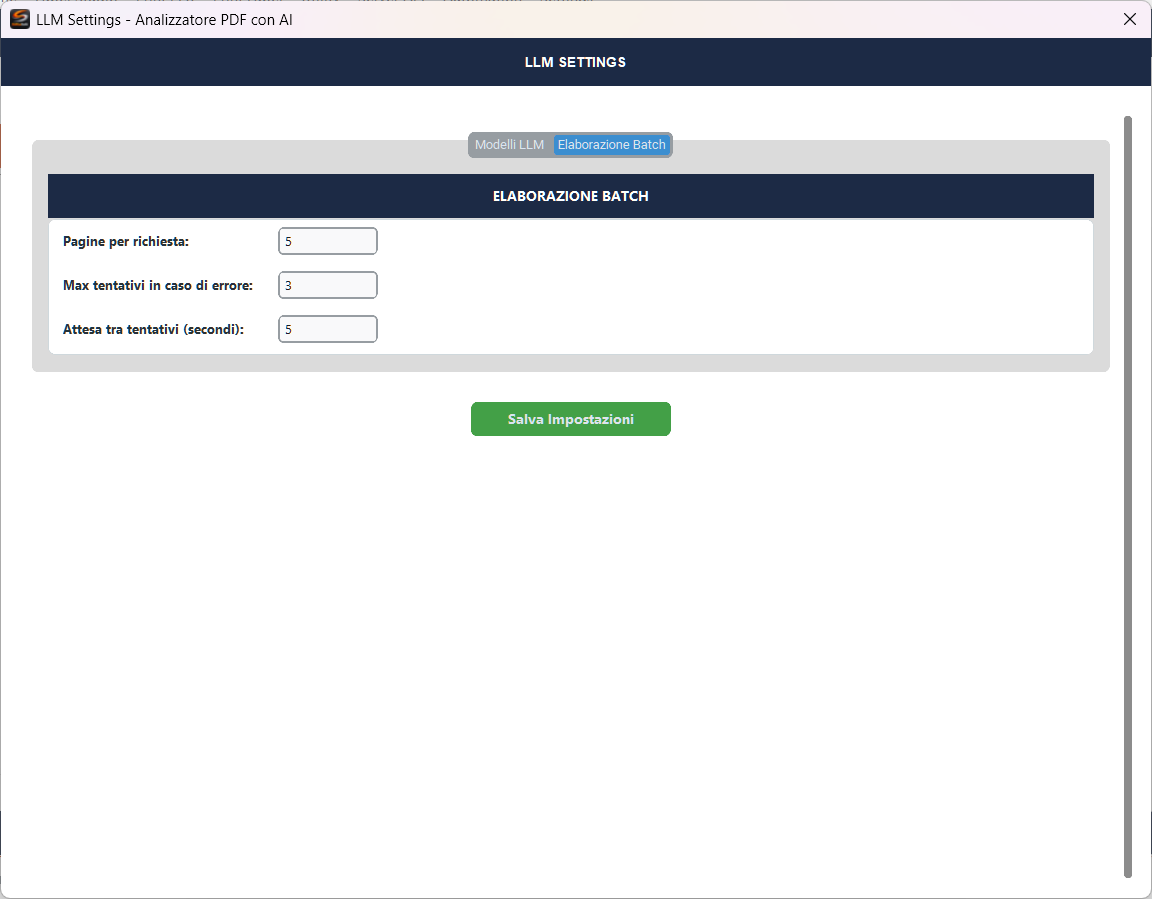
The Batch Processing tab controls the request behavior:
- Pages per request — How many PDF pages to send in each individual request to the model
- Max retries on error — Number of automatic retries before switching to the next model
- Wait between retries (seconds) — Pause between retries to avoid rate limiting
Profile Manager
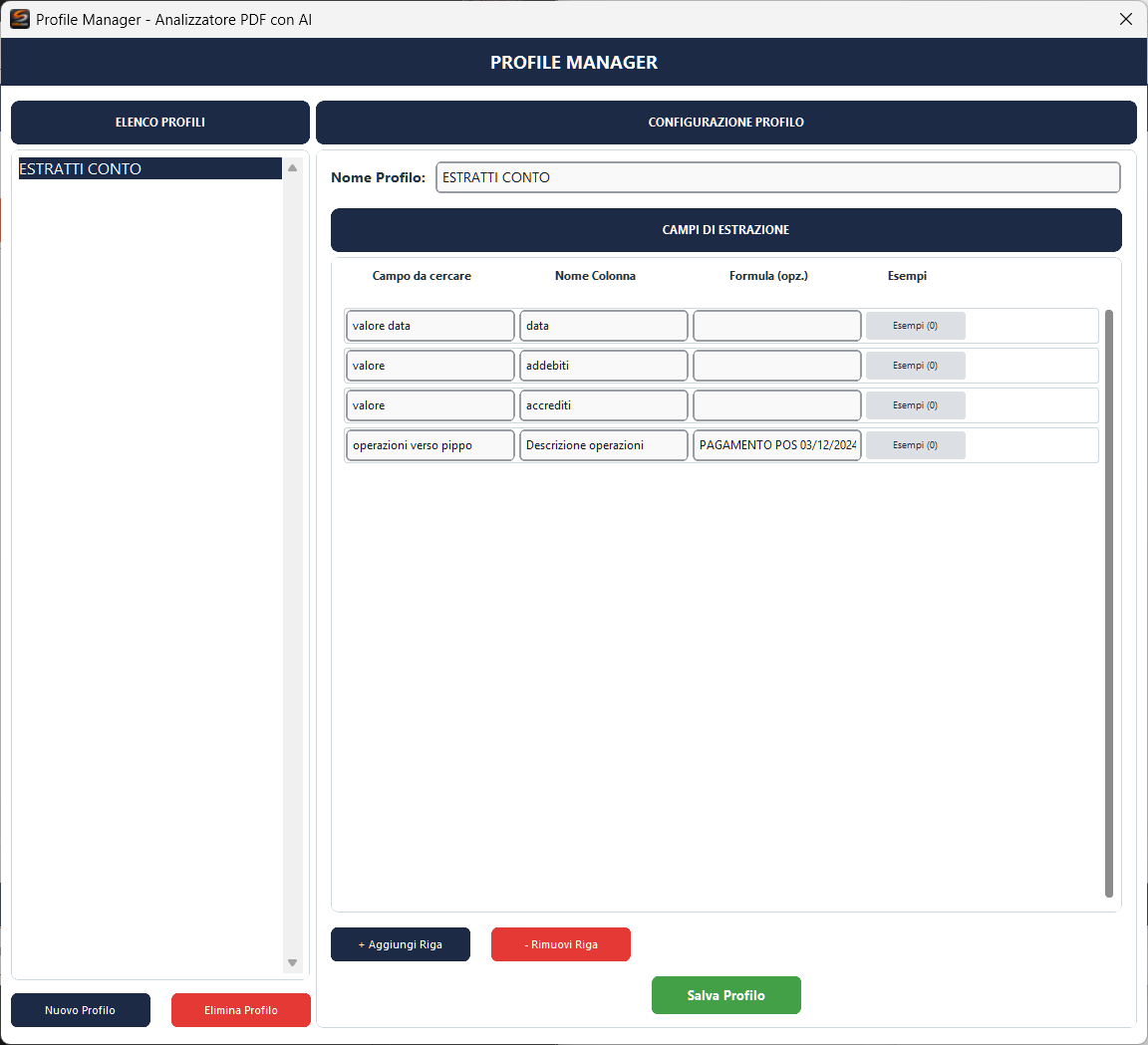
The Profile Manager defines which data to extract from PDF documents. The profile list is on the left, the selected profile configuration is on the right.
Profile Name — Profile identifier (e.g. “BANK STATEMENTS”).
Extraction Fields — Each row defines a field to extract:
- Field to search — Text description of what to search for in the PDF (e.g. “date value”, “amount”, “transactions to company X”)
- Column Name — Name of the column in the results table (e.g. “date”, “debits”, “credits”)
- Formula (opt.) — Optional formula to transform the extracted value
- Examples — Examples of expected values to guide the AI in extraction
Providing concrete examples in the Examples field significantly improves AI extraction accuracy. For instance, for a date field, enter “15/03/2026, 01/12/2025” to indicate the expected format.
- + Add Row — Adds a new extraction field
- - Remove Row — Removes the selected field
- Save Profile — Saves the current profile
- New Profile — Creates a new empty profile
- Delete Profile — Deletes the selected profile
Workflow
- Create or select an extraction profile in the Profile Manager
- Add PDF files with Add Files
- Select the profile from the Select Profile dropdown
- Configure the processing options (pages per request, separate processing)
- Click Start Processing to start AI extraction
- Review the results in the Results tab
- Export with Export to Excel