Excel/ODS Aligner with AI
Automatically align columns across multiple Excel/ODS sheets using artificial intelligence. The AI analyzes column names and data to map each sheet to the default sheet structure.
Main screen

The interface is divided into a left sidebar with controls and a right main area with the sheet tables.
Sidebar
File:
- Load Excel/ODS — Loads an Excel (.xlsx) or ODS file for analysis
- Save Excel/ODS — Saves the file with realigned columns
Profiles:
- Save JSON — Saves the current alignment configuration as a JSON profile
- Load JSON — Loads a previously saved alignment profile
Sheets:
- Default — Selects which sheet to use as reference (default sheet)
- Sync Scroll — Synchronizes horizontal scrolling between the two tables
AI:
- Align — Starts AI column alignment of all sheets against the default sheet
- Filter — Filters sheets or columns to include in the alignment
- Setup — Opens the LLM configuration window
Sheets area
The main area displays two tables:
- Default sheet (fixed) — The reference sheet with the definitive column order
- Other Sheets — The other sheets in the file, with columns to be realigned
After AI alignment, the columns of the other sheets are reordered to match the structure of the default sheet.
Use Save JSON to save the alignment configuration. You can reuse it on similar files without repeating the AI process.
LLM Configuration
Opens from the Setup button in the sidebar. The “LLM Configuration for Excel Aligner” window has 3 tabs.
LLM Credentials
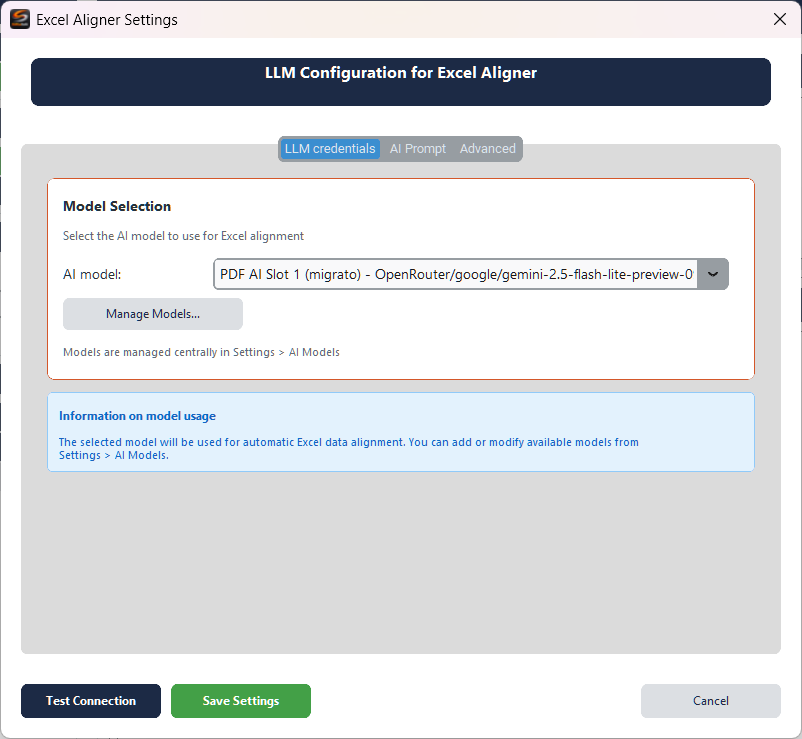
Model Selection:
- AI model — Selects the AI model to use for alignment
- Manage Models... — Opens the centralized model manager (Settings → AI Models)
Models are managed centrally in Settings → AI Models. The information box reminds you where to add or modify available models.
Test Connection verifies the connection to the model, Save Settings saves, Cancel cancels.
Column names and a data sample are sent to the selected AI provider. Do not use files containing sensitive or confidential data without proper verification.
AI Prompt

The AI Prompt tab allows you to customize the prompt sent to the AI model. The prompt describes how to analyze column names and data to determine the correct alignment.
- Load from File — Loads a prompt from a text file
- Save to File — Saves the current prompt to a file
- Restore Default — Restores the default prompt
Advanced

The Advanced tab configures AI parameters:
- Token Max Input — Input token limit (empty = model default)
- Token Max Output — Output token limit (empty = model default)
- Max Rows for Analysis — Number of data rows to include in the analysis (default: 10). Higher values improve accuracy but increase costs.
Increasing the analysis rows improves alignment accuracy but increases token consumption and API costs. For most files, the default value of 10 rows is sufficient.
Workflow
- Load the Excel/ODS file with Load Excel/ODS
- Select the reference sheet from the Default dropdown
- Configure the AI model with Setup (if not already done)
- Click Align to start the AI alignment
- Review the result in the tables
- Save the aligned file with Save Excel/ODS