Odoo Label Printing
Connect Label Creator directly to your Odoo server to print labels from your product catalogue. Create custom data profiles, download up-to-date information and print with one click.
Overview
Odoo Label Print is the bridge between your Odoo ERP system and physical label printing. Instead of manually exporting data and re-importing it, Label Creator connects directly to your Odoo server via JSON-RPC API and downloads product data in real-time.
The feature is divided into two separate screens, accessible from the menu Print Labels → Odoo:
- Create Profiles — The configuration screen where you define what to download from Odoo: data model, fields, relationships between tables, filters and pricing settings. This is the preparatory work, done once for each data type.
- Print Labels — The operational screen where you work daily: download updated data, search for products, import lists from Excel, set quantities and print labels.
The typical workflow is: create a profile once (configuration), then use the print screen daily to download updated data and print.
To connect to Odoo you need to enter the server URL, database, username and password in the credentials. These are saved locally in a secure way.
Create Profiles — Configuration
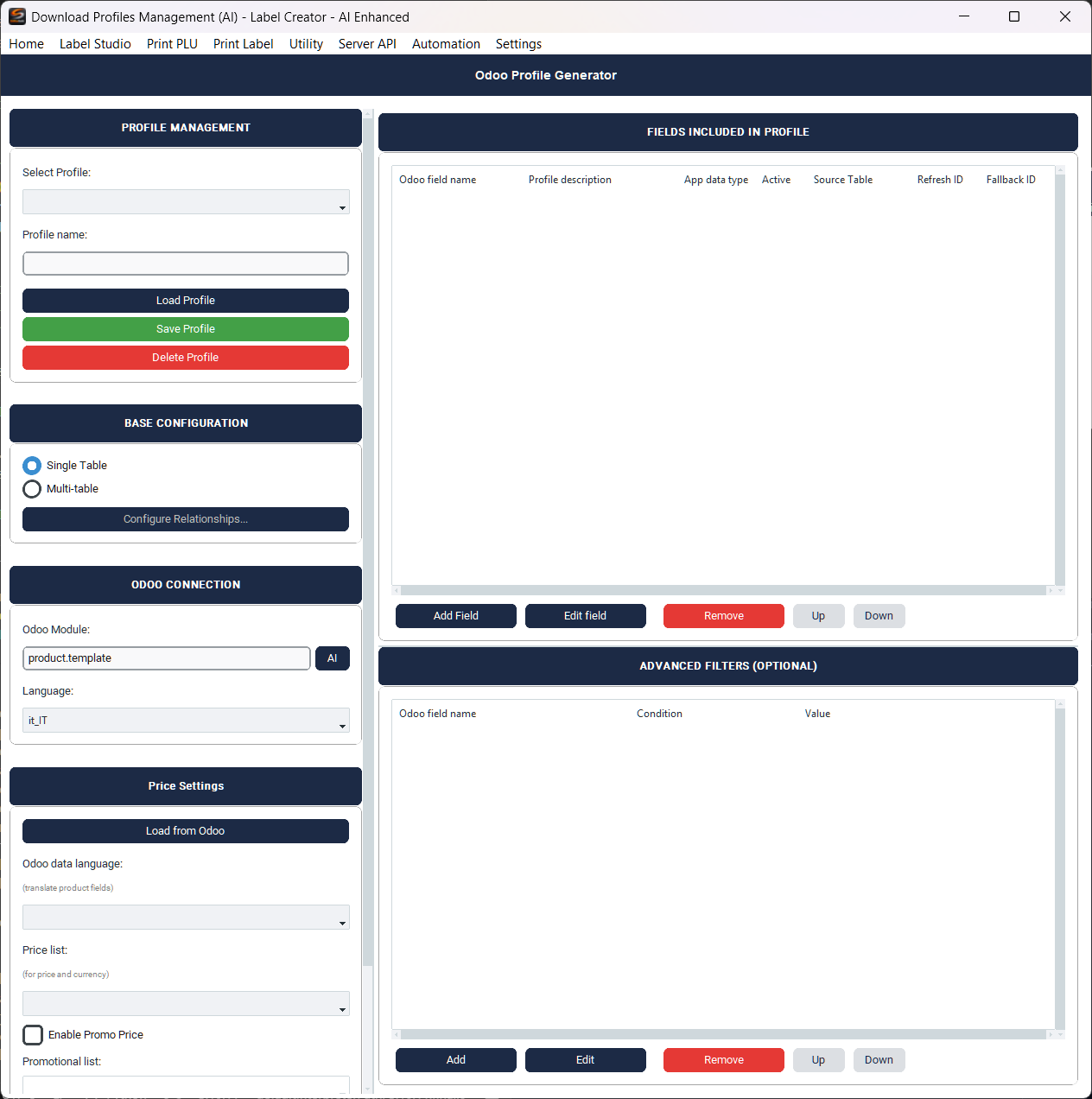
A profile defines what to download from Odoo: which data model (e.g. products, contacts, invoices), which fields to include and with which filters. Once configured, the profile is reusable in the Print Labels screen: just select it from the dropdown and click "Download Data".
Profile creation involves multiple steps: choosing the Odoo model, selecting fields to import, optionally configuring relationships with linked tables, and adding filters to limit the downloaded data.
AI-powered model search
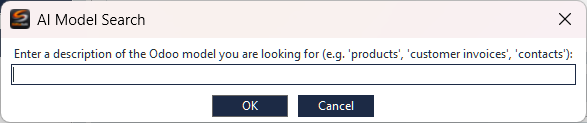
If you don't know the technical name of the Odoo model (for example product.template for products, or account.move for invoices), you can describe what you're looking for in natural language. The AI assistant analyzes your description and suggests the most appropriate Odoo model.
For example, type "product catalog" or "customer invoices" and the system will identify the correct model. This feature requires an AI model to be configured (see AI Model Configuration).
Selecting fields
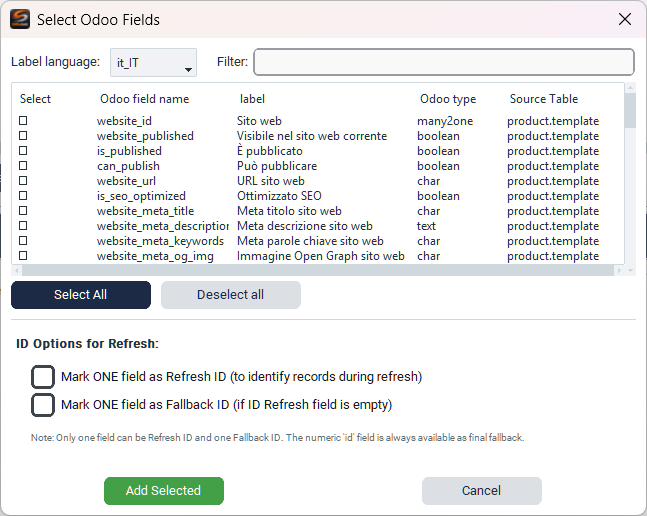
After choosing the model, Label Creator downloads the complete list of available fields directly from Odoo. The table shows for each field the technical name, the label in your selected language, the data type and the table it belongs to.
- Label language — The language in which to display field labels (it_IT, en_US, fr_FR, etc.). Translations come directly from your Odoo server.
- Filter — Quickly search among available fields by typing in the search box
- Select All / Deselect all — Quick selection. Generally it's better to select only fields actually needed for the labels.
- ID Options for Refresh — Configure which fields to use as unique identifier to update records without duplicating them
Editing a field
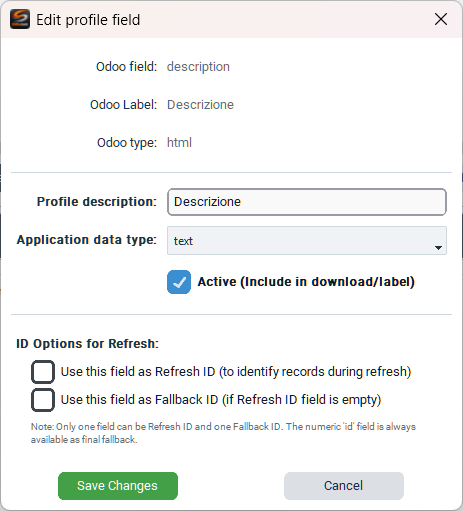
Each imported field can be customized. The edit dialog allows you to change the visible description, the data type in the application and the active/inactive status of the field.
- Profile description — The label that will appear in tables and label layouts. You can customize it from the original Odoo name.
- Application data type — How the data is interpreted: text, integer, float, boolean. Some Odoo fields (e.g. HTML) are automatically converted to text.
- Active — If disabled, the field is not downloaded or displayed, but remains in the profile for future use.
Multi-table configuration
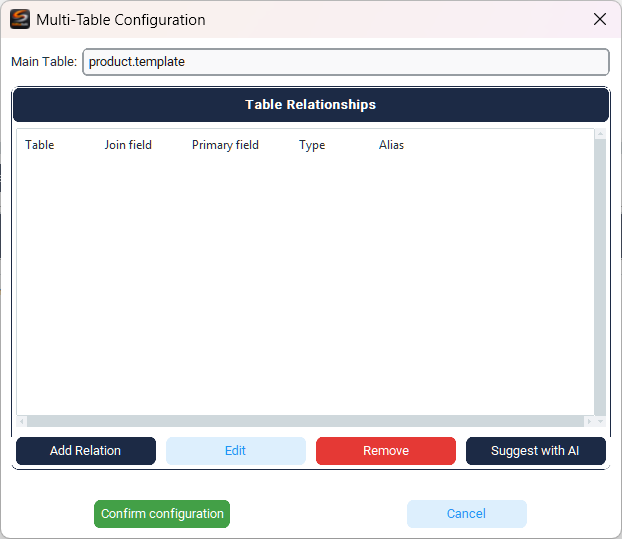
Much data in Odoo is distributed across multiple linked tables. For example, product prices are found in product.pricelist.item, variants in product.product, and categories in product.category. Multi-table configuration allows you to combine this data into a single profile.
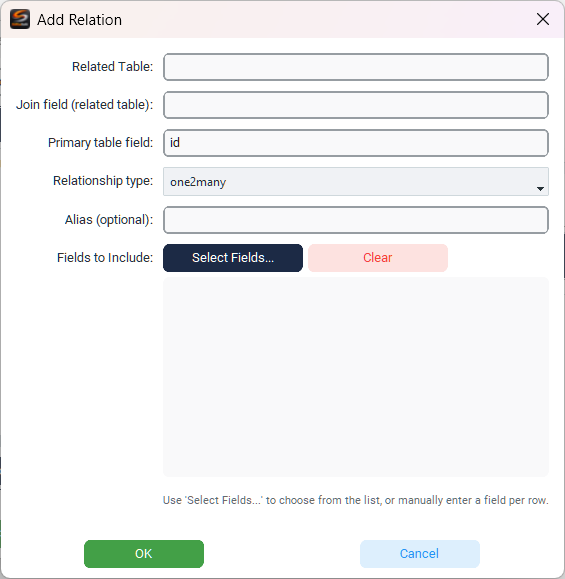
For each relationship you configure:
- Related Table — The linked Odoo model (e.g.
product.pricelist.item) - Join field — The field in the related table that references the primary table
- Primary table field — The field in the primary table (typically
id) - Relationship type — The type of Odoo relationship:
one2many,many2one,many2many - Fields to Include — The specific fields to import from the related table
AI suggestions for relationships
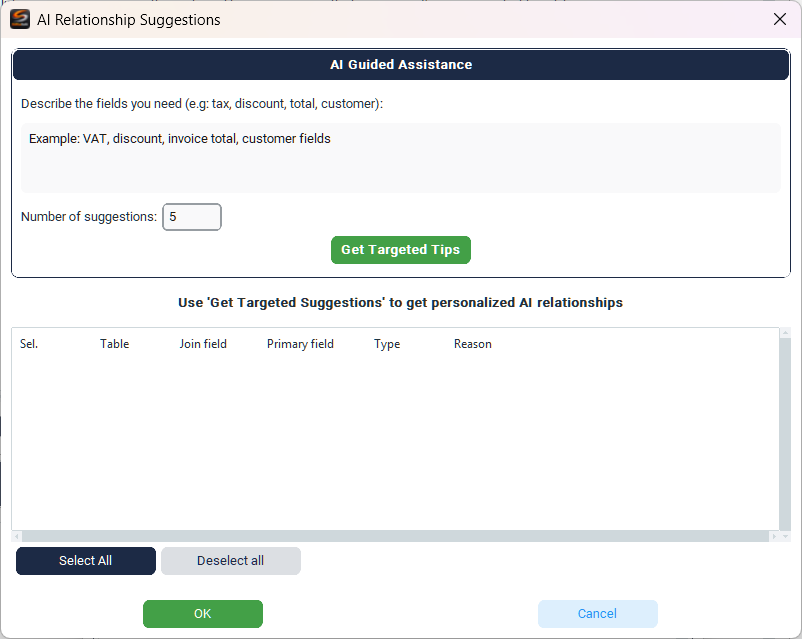
Configuring relationships between Odoo tables can be complex, especially for those unfamiliar with the database structure. The AI assistant simplifies this process: describe the data you need in natural language (for example "tax, discount, invoice total") and the system automatically suggests relationships to configure, with the correct join field and relationship type.
Suggestions are shown in a table with an explanation for each proposed relationship. You can select the ones you need and add them with one click.
Profile filters
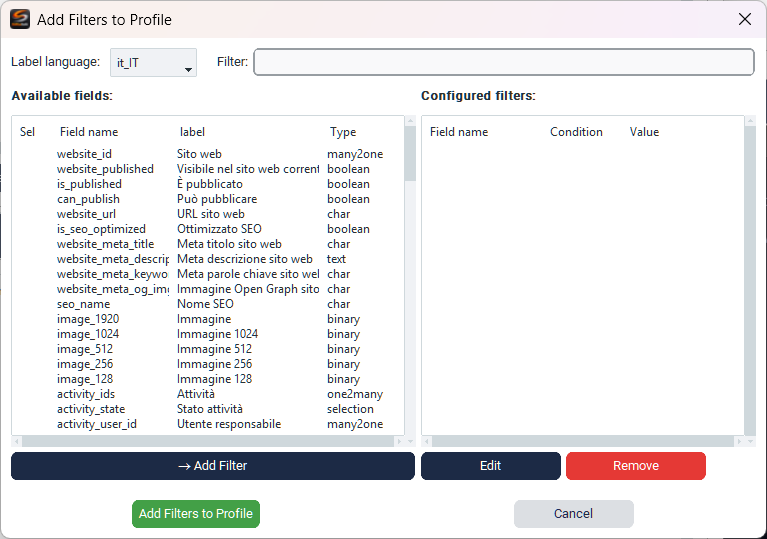
Filters allow you to limit the data downloaded from Odoo. Instead of importing all products from the catalog, you can download only those that meet certain conditions — for example only products published on the website, or only those in a certain category.
Select a field from the list on the left, click "Add Filter", define the condition and value. Configured filters are automatically applied to each download.
Print Labels — Daily use
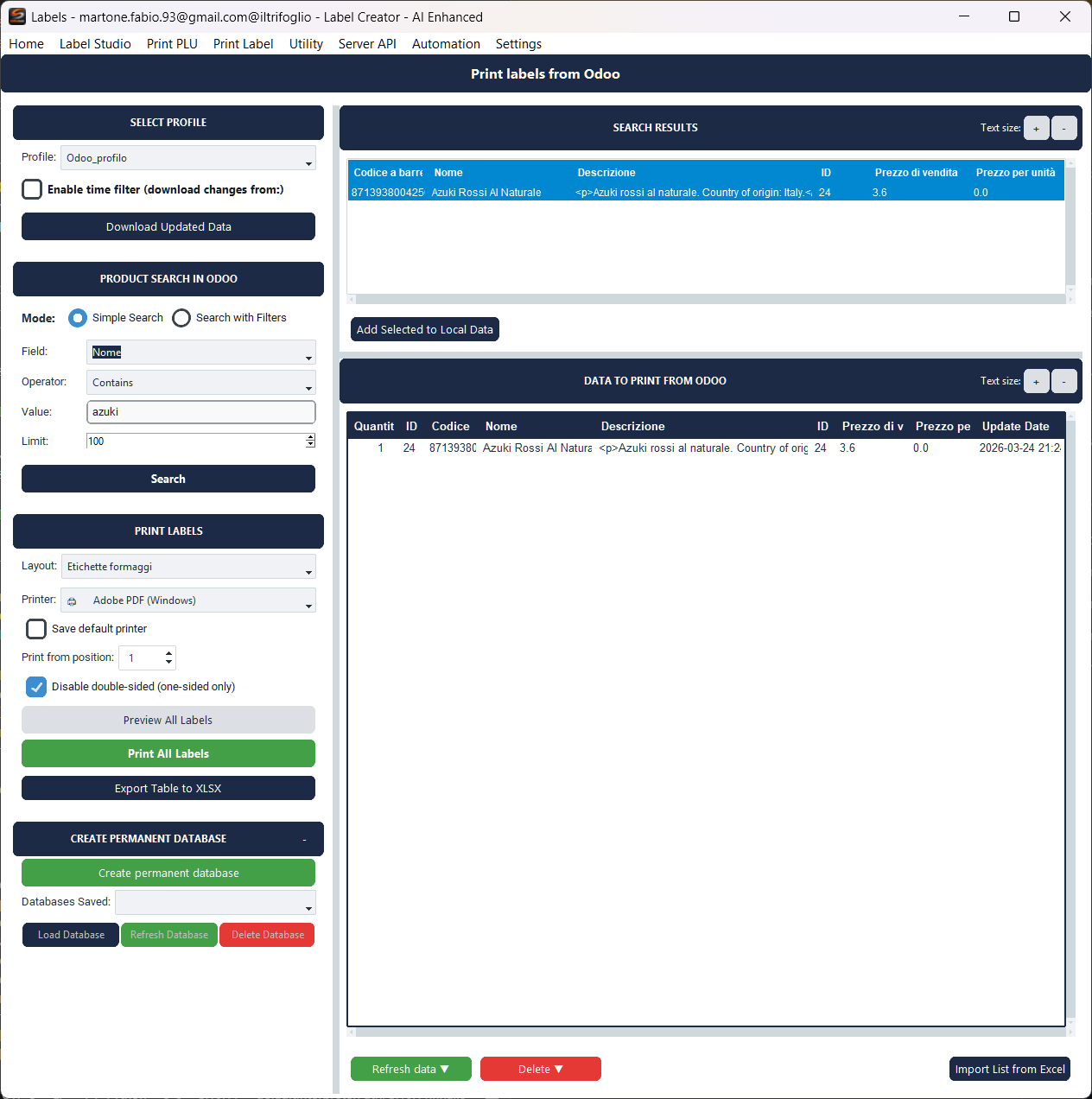
The Print Labels screen is the operational area where you work daily. Once you've created at least one profile, this screen allows you to download updated data from Odoo, search for products, manage quantities and print labels.
The interface is divided into two areas. On the left: profile selection, pricing settings, data download with time filter, product search and print configuration. On the right: the table with downloaded products, ready to be selected and printed.
Pricing settings
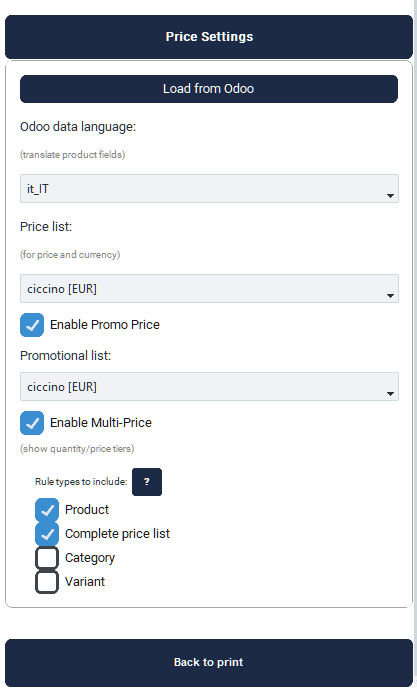
Odoo manages prices through a flexible pricelist system. Before downloading data, configure which pricelist to use for the labels.
- Odoo data language — Language for product field translations (name, description). Download data in the language configured in your Odoo.
- Price list — The pricelist to use for the price and currency on the labels
- Enable Promo Price — Enable support for promotional prices. Select the promotional pricelist to compare against.
- Enable Multi-Price — Show price brackets/quantities (e.g. "from 10 pieces: 5% discount")
- Rule types to include — Filter pricelist rule types: Product (rules for specific product), Complete price list (global rules), Category (by category), Variant (by variant)
Downloading data

Data download happens by clicking "Download Updated Data". Data is saved in a local SQLite database, allowing you to work even when the Odoo server is unreachable.
The time filter is particularly useful for large catalogs. Instead of downloading the entire catalog each time, you can enable it to import only records modified after a certain date and time. On first use, download all data without filter to populate the local database. On subsequent downloads, enable the filter to update only changes.
For catalogs with thousands of products, the time filter drastically reduces download times. After the first full import, use the filter to download only recent changes.
Searching for products

Product search queries the Odoo server in real-time directly, without depending on data already downloaded. It's useful for finding and adding individual products to the print list.
- Simple Search — Quick search for a single field with operator and value
- Search with Filters — Combine multiple active filters simultaneously. Active filters remain visible and you can remove them individually.
Search results can be added to the local data table with a double-click or via the context menu.
Import from Excel
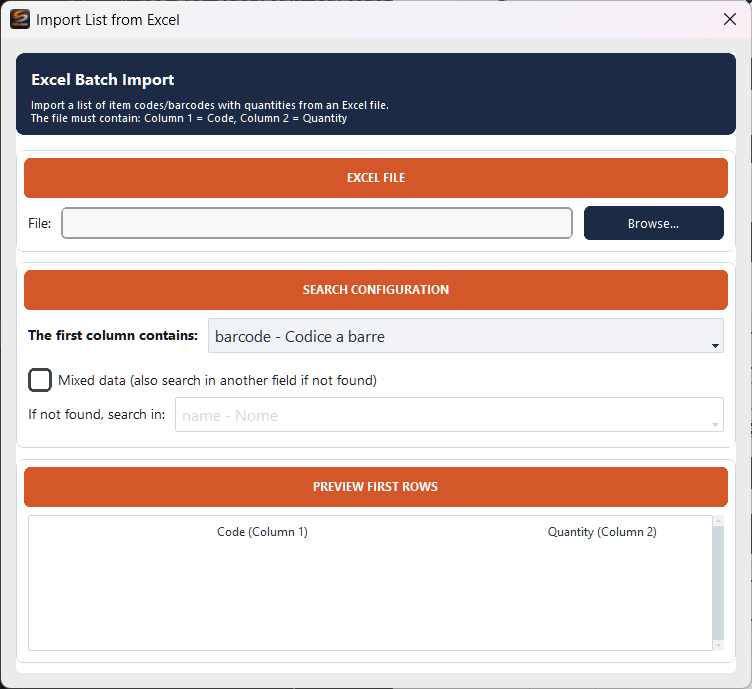
When you need to print labels for a specific list of products — for example a purchase order or inventory — you can import codes directly from an Excel file.
The file must have two columns: the first with identification codes (barcode, internal code, name) and the second with the quantities of labels to print.
- The first column contains — Select the Odoo field in which to search for codes (e.g.
barcode,default_code,name) - Mixed data — If enabled and a code is not found in the primary field, the system repeats the search in an alternative field. Useful when the list contains mixed barcodes with internal codes.
- Preview First Rows — Verify that columns have been interpreted correctly before starting the import
Managing data and printing
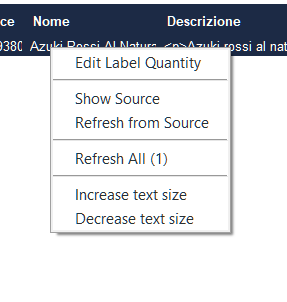
The data table on the right shows products ready for printing. Select records, set quantities in the appropriate column and click Print. The context menu (right-click) offers quick operations:
- Edit Label Quantity — Change how many labels to print for the selected product
- Show Source — Show record metadata: source profile, download date, Odoo ID
- Refresh from Source — Reload the record from the Odoo server to get the most recent data
- Refresh All — Update all records in the table
- Increase / Decrease text size — Adjust text size in the table
To print: select a label layout and a printer in the left panel, select products in the table (or use "Select All"), set quantities and click Print. You can use PDF Preview to verify the result before sending to the printer.
AI Model Configuration
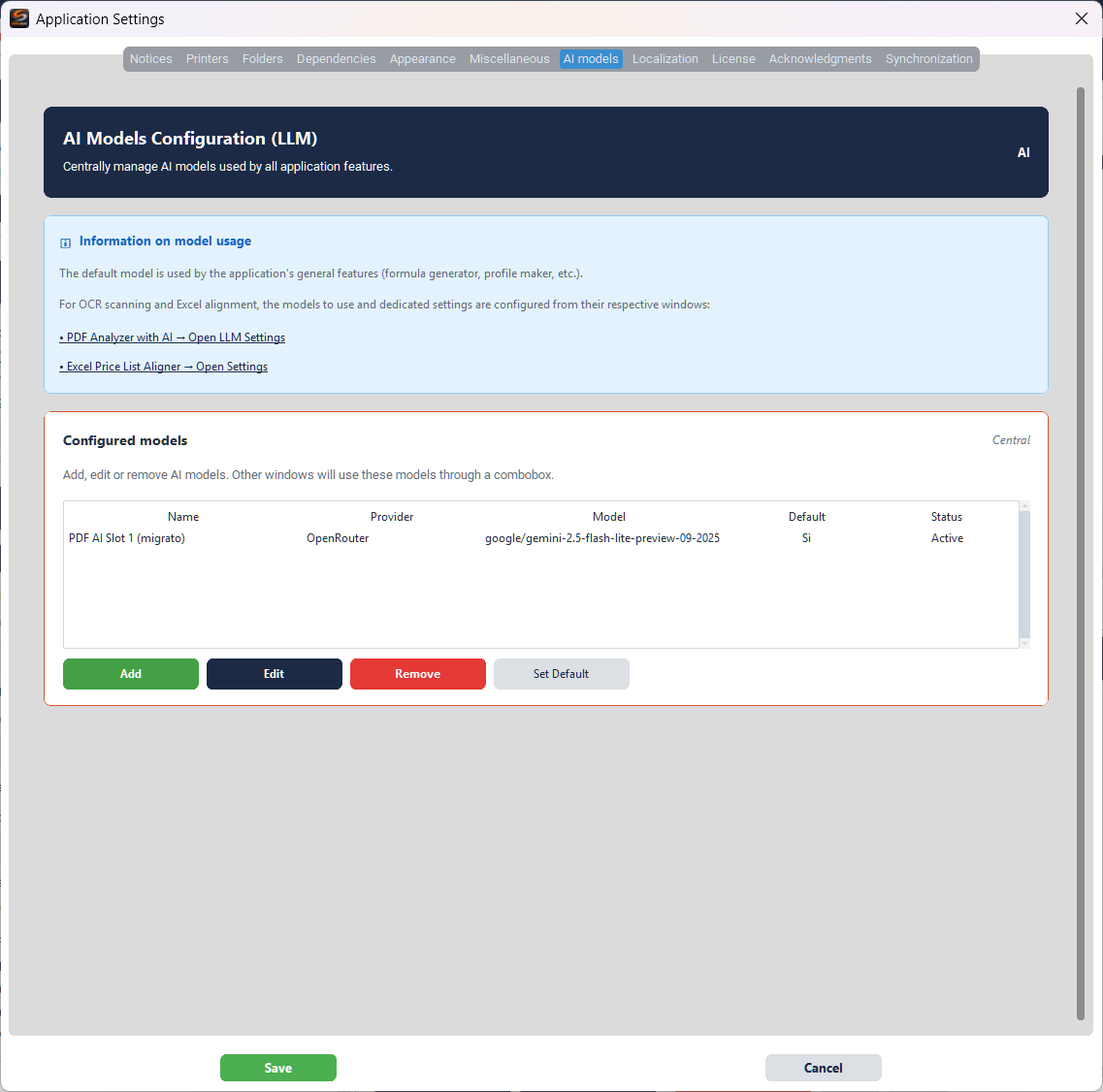
The AI features on the Create Profiles screen (model search and relationship suggestions) require a language model (LLM) to be configured. Configuration is found in Settings → AI Models.
You can use any supported provider (OpenAI, Anthropic, Google, OpenRouter, etc.) and set a model as default for all application features. Models configured here are also shared with the PDF Analyzer and Excel Aligner.
AI features consume tokens from the selected provider. Costs depend on the chosen model and the amount of data processed. Check your AI plan limits and costs before production use.