Permanent Database Manager
Export and import permanent databases (data from Excel, CSV or database connections). Useful for backup, migration between computers and data recovery.
Main screen
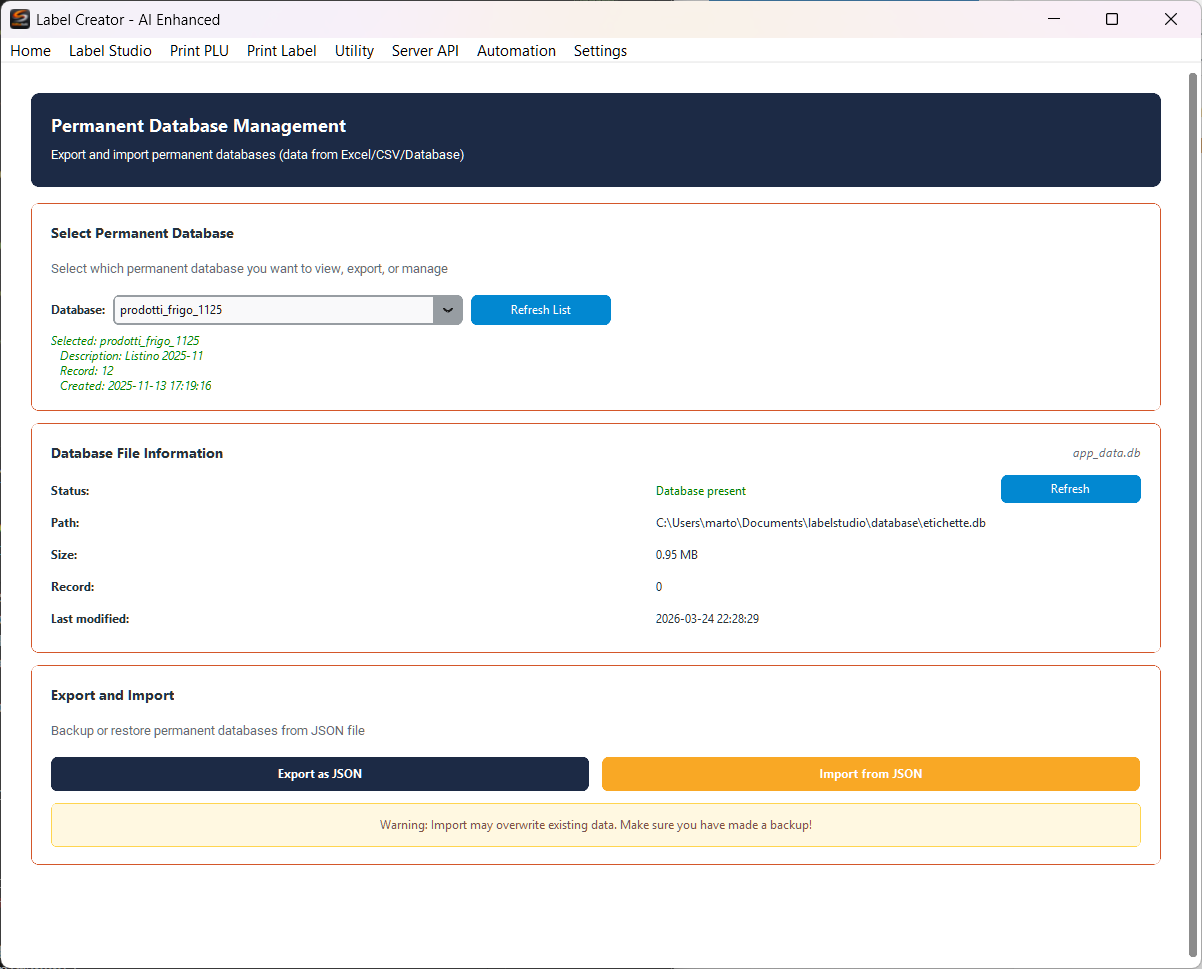
The screen is divided into three sections: Select Permanent Database at the top, Database File Information in the middle and Export and Import at the bottom.
Select Permanent Database
Select which permanent database to view, export or manage.
Permanent databases contain data imported from Excel files, CSV or external database connections through the Tables/Database module. Data is saved locally and remains available between application sessions.
- Database — Dropdown listing all available permanent databases
- Refresh List — Refreshes the list of available databases
- Information — Below the dropdown, the selected database name, description, record count and creation date are shown
Database File Information
Shows technical information about the physical database file:
- Status — Indicates whether the database is present and accessible
- Path — Full path of the database file on disk
- Size — File size in MB
- Record — Total number of records in the database
- Last modified — Date and time of the last file modification
- Refresh — Refreshes the file information
Export and Import
Backup and restore permanent databases using JSON files.
Perform regular backups of permanent databases, especially before application updates or migrations. The exported JSON file includes all records and metadata.
Export as JSON
Exports the selected database to a JSON file. A save dialog opens to choose the destination. The JSON file contains all the records and metadata of the database.
Import from JSON
Imports a database from a previously exported JSON file. A file selection dialog opens.
Warning: importing may overwrite existing data. Make sure you have a backup before proceeding.
Typical usage
Data backup
- Select the database from the dropdown
- Click Export as JSON
- Choose the destination folder and save
Migration to another computer
- Export the database as JSON from the source computer
- Copy the JSON file to the destination computer
- Open the Database Manager on the destination computer and click Import from JSON