Online Mode
Access your Odoo product catalog directly from your Android device. Search, edit, enrich with artificial intelligence and take photos — all in real-time, without needing a computer.
Overview
Online Mode is the main function of SiltaFlow for product management. It allows you to connect to your Odoo server and work directly on your catalog: search items, view and edit information, generate descriptions with artificial intelligence and take product photos.
To access Online Mode, from the main SiltaFlow screen tap the "Online Mode" button in the Product Management area. You must have already configured the connection to your Odoo server (see the Connection and Authentication guide).
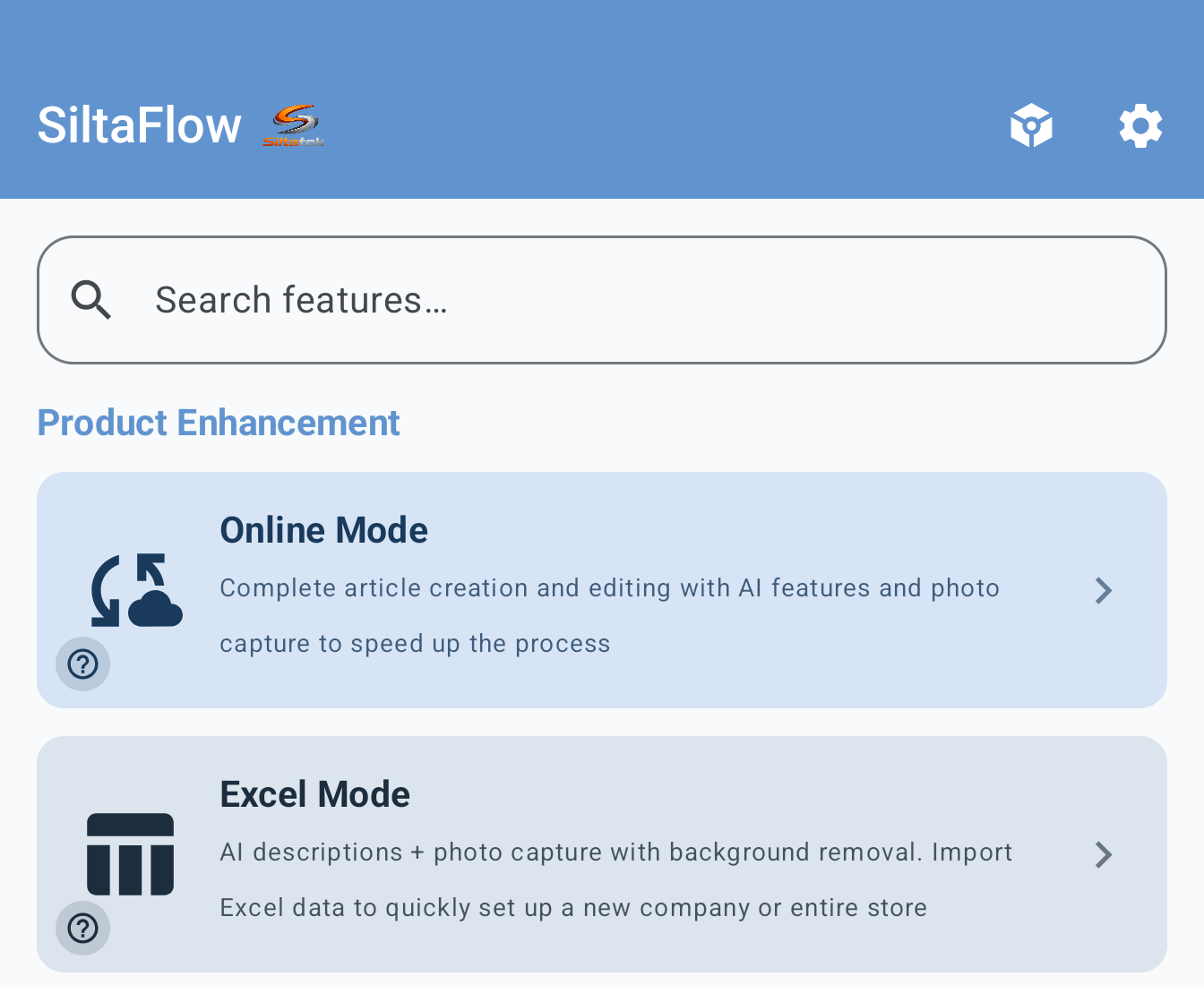
The main SiltaFlow screen with the Online Mode button in the Product Management area
To use Online Mode, you need an active internet connection and login credentials for your Odoo server (address, database, user and password).
Browsing the Catalog
When you enter Online Mode, you'll see the product search screen. From here you can find any item in your Odoo catalog in several ways:
- Text search — Type at least 2 characters: SiltaFlow searches Odoo by product name, barcode and internal reference.
- Barcode scanning — Tap the barcode icon and point your device camera at the product barcode. The product is found immediately.
- Operational filters — Narrow the list to products without description, image, barcode, internal code, supplier or packaging.

Open Subscription in the app and select Restore purchases, using the Google Play account that purchased Pro.
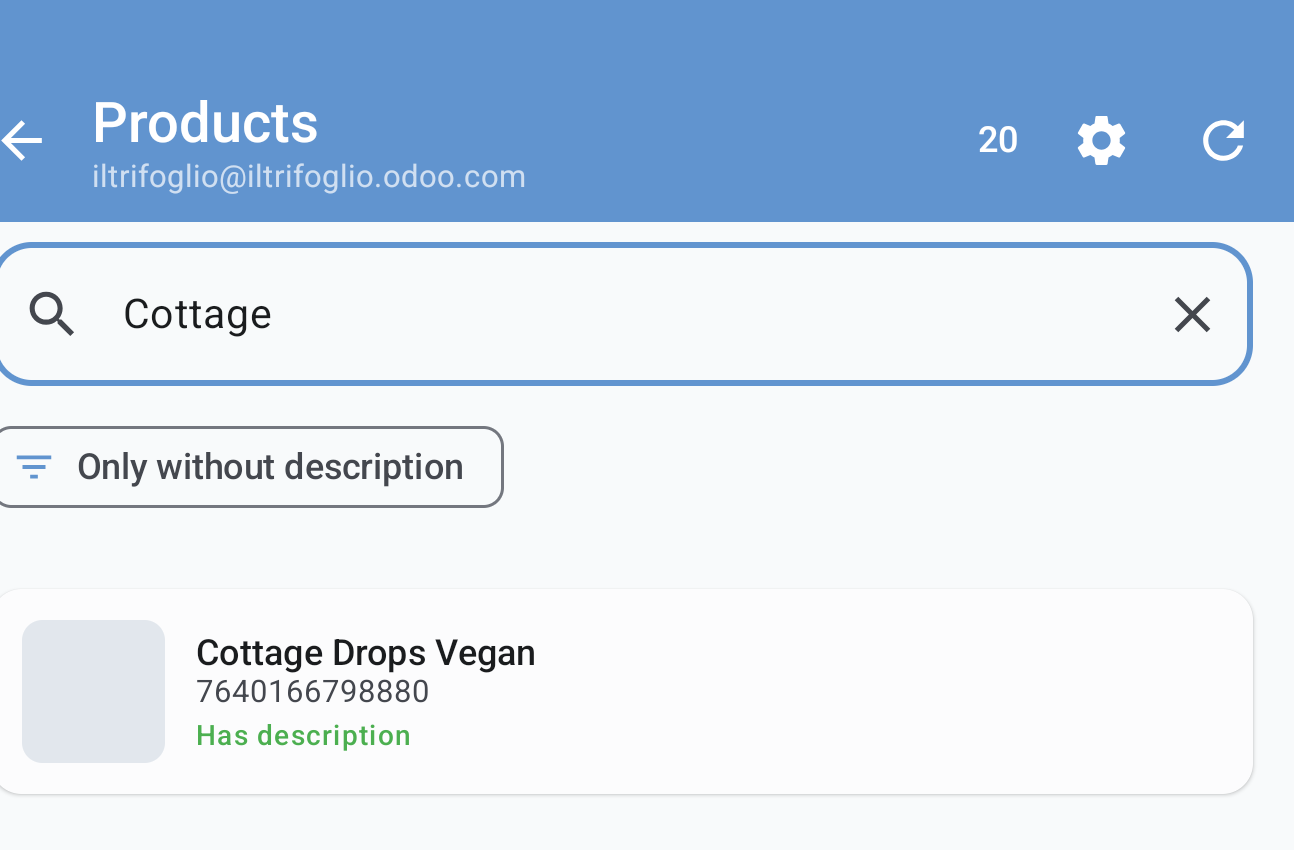
Search result: the product shows name, barcode and image. The green "Has description" badge indicates that the product already has a description.
Each result shows the main product information: name, internal code, barcode and thumbnail image. Tap a product to open its complete product card.

The "No description only" filter activated (dark chip with checkmark). Each product shows a colored badge: green "Has description" if complete, red "No description" if missing.
Filters help complete the catalog: focus on products missing descriptions, images, barcodes, internal references, suppliers or packaging. Text search uses name, barcode and internal reference; barcode scan performs an exact search.
Barcode scanning is the fastest way to find a product. It works with all common formats: EAN-13, EAN-8, UPC, Code 128, QR Code and many others.
The Product Card
The product card is the heart of Online Mode. Here you'll find all information about the product, organized in clear and easily navigable sections.
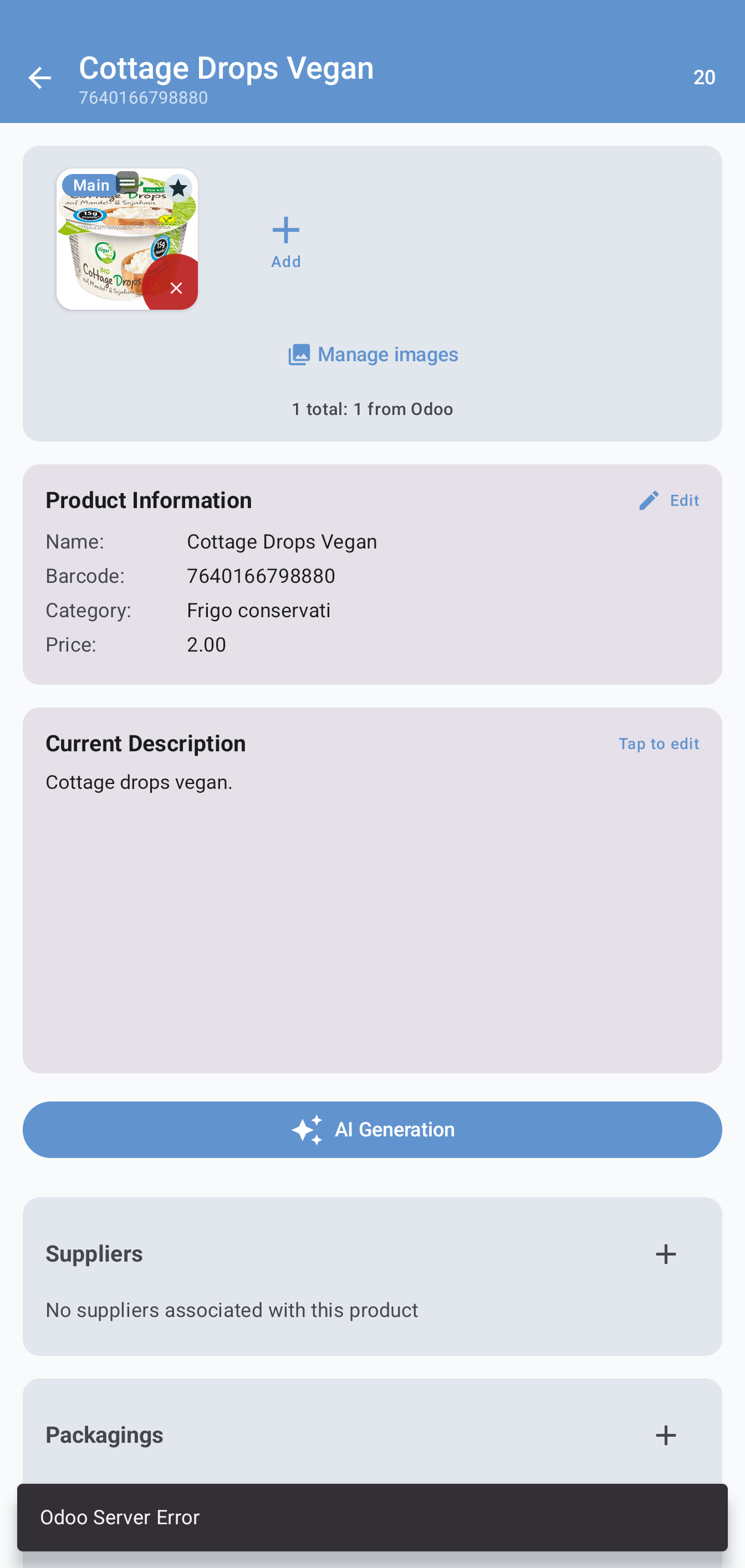
The product card: at the top the image with the + Add button and the "Manage images" link. Below the main information (name, barcode, category, price) with the Edit button. Then the description with "Tap to edit" and the blue AI Generation button.

Scrolling through the card: the Packagings section shows a "Case" package with quantity 12 units. The pencil and trash icons allow you to edit or delete each item.
At the top you'll find:
- Product image — Tap to enlarge or access the image gallery
- Product name — The name as it appears in the Odoo catalog
- Internal code and barcode — The product identifiers
- Action buttons — Generate AI description, take photo, open gallery
- Manage images — The "Manage images" link with a counter showing how many images are present and how many uploaded to Odoo
- Description — The commercial product description with the text "Tap to edit" and the blue "AI Generation" button to create it automatically
- Suppliers — Expandable section with the list of associated suppliers. The + button allows you to add new ones
- Packagings — Expandable section with configured packagings (name, quantity per case, barcode). The + button allows you to add new ones
Scroll down to find sections with all product fields: general information, prices, description, supplier, inventory and more. Each section is expandable: tap the heading to open or close it.
Editable fields are highlighted and you can tap them to change the value. Changes are saved to Odoo when you press the Save button.
AI Description Generation
SiltaFlow can automatically generate professional product descriptions thanks to artificial intelligence. This feature is particularly useful when you need to catalog many new items and want to save time writing descriptions.
How it works
From the product sheet, tap AI. The app uses name, category, existing description and selected prompt to generate a new description. The product barcode is required so the flow works on a uniquely identified item.
You can choose from different instruction templates that guide the AI to generate descriptions in different styles: commercial, technical, short, detailed and more. Templates are customizable from Settings.
AI features require an external provider configured by you. Any usage fees are billed by that provider; SiltaFlow does not sell AI credits.
Supported AI services
SiltaFlow supports multiple artificial intelligence services. The table below shows the main ones:
| Service | Available models | Notes |
|---|---|---|
| OpenAI | GPT-4o, GPT-4o mini, o1, o3-mini | Requires OpenAI API key |
| Perplexity | sonar, sonar-pro | Requires a Perplexity API key |
| OpenRouter | Hundreds of models | Access to multiple providers with a single key |
| Custom | Any compatible model | For local servers or unlisted providers |
AI features require an external provider configured by you. Any usage fees are billed by that provider; SiltaFlow does not sell AI credits.
AI for product fields
Beyond the description, AI can suggest values for Odoo fields configured in settings. Text, HTML, numeric, boolean, date, selection, many2one and many2many fields are supported; the user reviews suggestions before saving.
- AI suggestions are not written directly to Odoo: they remain under review until you tap Save.
- For relational fields, SiltaFlow uses available Odoo values when they have been synchronized.
- If you enable "Skip description generation", AI works only on the selected fields.
Photos and Image Management
SiltaFlow allows you to take photos of products directly with your device camera and upload them to your Odoo catalog. No need to transfer photos between devices or manually upload them from a computer.
Taking a photo
From the product card, tap the camera button. The viewfinder opens: point your device at the product and take the photo. The photo is automatically added to the product gallery.
Background removal
SiltaFlow includes automatic background removal. After taking a photo, you can remove the background with a single tap to get a clean product image on a transparent background, perfect for your catalog and e-commerce.
Image gallery
Each product can have multiple images. From the gallery you can:
- View all images associated with the product
- Set an image as the main product photo
- Delete images that are no longer needed
- Zoom in on an image to see it in detail

The "Manage Images" window: the star icon marks the main photo, the arrows allow you to reorder images, the trash icon deletes.
AI image enhancement
From image management you can use remote AI services to enhance an existing photo, edit it with a prompt, generate variants or apply presets. This flow starts from a local source image and does not create product images from text only.
Supported image providers are OpenAI, Google/Gemini and OpenRouter. You can use custom prompts, up to two example images, color palettes, output count and watermark; images stay local until you upload or promote them to Odoo.
Editing Product Fields
On the product card you can edit fields directly. Tap a field to enter edit mode: the type of editor that appears depends on the data type.
The table below shows the available field types and how to interact with each one:
| Field type | Description | How to edit it |
|---|---|---|
| Text | Names, descriptions, notes | Tap and type the new value |
| Number | Prices, quantities, weights | Tap and enter the numeric value |
| Yes/No | Published, active, for sale | Tap to toggle between active and inactive |
| Selection | Product type, tax category | Tap and choose an option from the list |
| Date | Expiration dates, creation dates | Tap and select the date from the calendar |
| Relation | Category, supplier, unit of measure | Tap and search in the list of available values |
Changes to fields are not sent to the server immediately. You can edit multiple fields and then press Save to send all changes together to Odoo.
Settings
Online Mode settings allow you to customize search behavior, artificial intelligence configuration, instruction templates for descriptions and camera options.
Search Settings
From here you can configure which fields are searched, how many results to show per page and filter behavior.

Search settings: results limit, default AI prompt, article creation, field editing, AI generation and supplier/packaging management.
- Results limit — Maximum number of products loaded for each search (from 10 to 1,000,000). The default value is 50.
- Default AI Prompt — Select which instruction template to use as default for AI generation, or leave "Use app defaults".
- Create Article — Shows or hides the button to create new products directly from the app. Disabled by default.
- Enable product editing — Enables the ability to edit product fields directly from the card. When enabled, the Edit button appears.
- Editable fields — Configure which Odoo fields can be edited from the app. Tap + to add fields, the refresh icon to sync the list from the server.
AI generation for fields
- Skip description generation — If enabled, the AI fills only relational fields (e.g., category, tags) without generating a text description.
- AI field selection popup — Shows a dialog to choose which fields to have the AI fill before starting generation.
Suppliers and Packagings
- Supplier Management — Enables the suppliers section on the product card to add, edit and remove suppliers.
- Packaging Management — Enables the packagings section on the product card to manage cases and packages.
AI Configuration
Select the artificial intelligence service, enter your API key and choose the model to use for description generation. You can test the configuration directly from this screen.
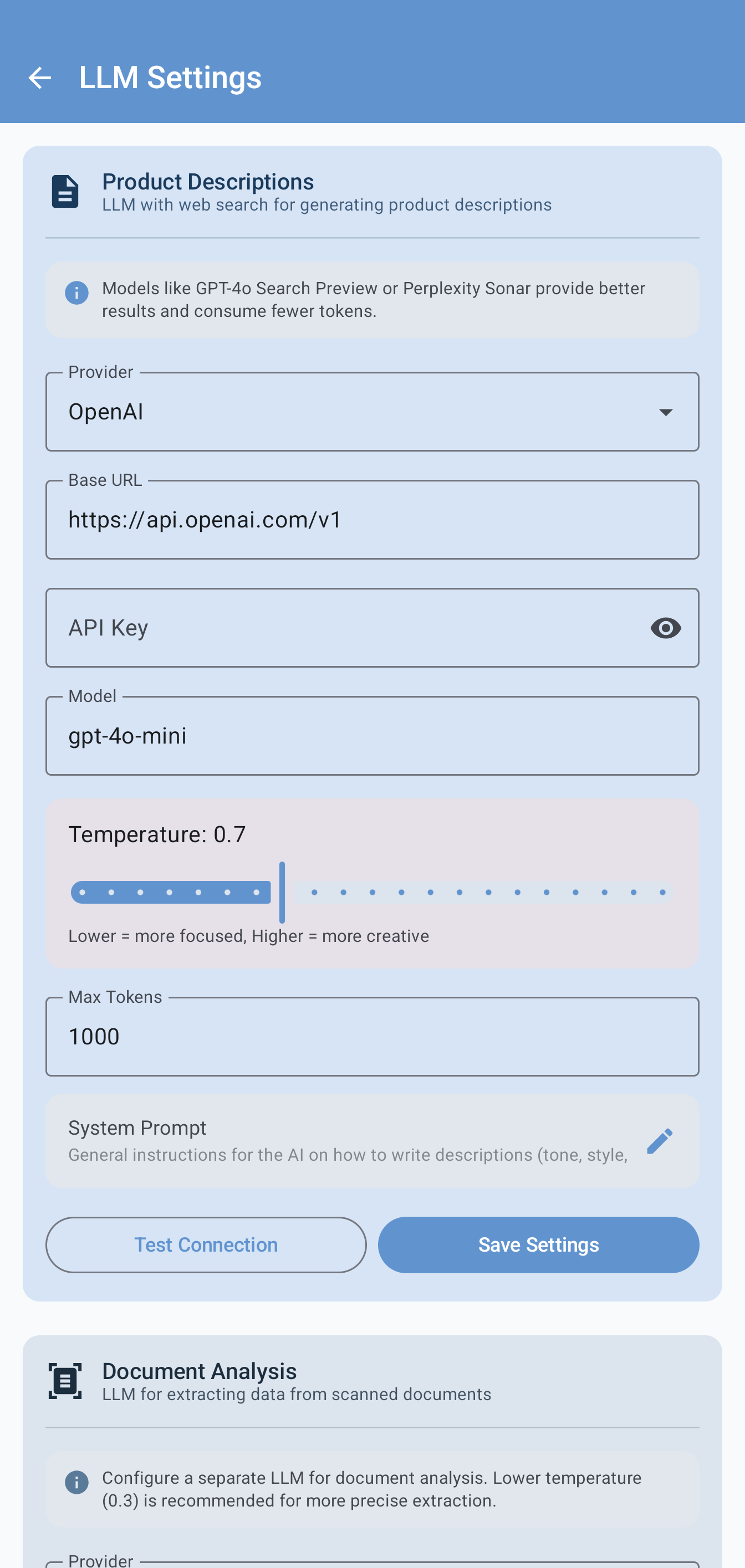
AI configuration: provider selection (OpenAI), URL, API key, model (gpt-4o-mini), temperature slider (0.7), max tokens and system prompt. Test Connection button at the bottom.
- Provider — The AI service to use: OpenAI, Perplexity, OpenRouter or a custom endpoint. When selecting a standard provider, the base URL is automatically filled in.
- API Key — The access key to the selected service. It is stored securely on the device.
- Model — The specific model to use (e.g., gpt-4o-mini, sonar-pro). For OpenRouter a catalog with hundreds of models is available.
- Temperature — Controls the creativity of responses: low values (0.3) for precise and coherent texts, high values (0.9) for more creative and varied texts. The default value is 0.7.
- Max tokens — Maximum length of the generated response. The default value is 1000.
- System prompt — General instructions for the AI on tone, style and format of descriptions.
- Test connection — Verify that the configuration is correct before saving. If the test is successful, you'll see a confirmation message.
Instruction Templates
Instruction templates define the style and format of AI-generated descriptions. You can create custom templates for different purposes: commercial descriptions, technical specifications, e-commerce texts and more.

The 5 default templates, one per language (IT, EN, ES, FR, DE). Each template shows labels for language and category, the toggle to enable it and the star icon for the default template.
The app includes 5 default templates, one for each supported language (Italian, English, Spanish, French, German). Each template shows colored labels for language, category and type.
- Each template can be enabled or disabled individually via the toggle switch
- The star icon marks the default template, the one proposed first during generation
- Tap the + button in the top right to create custom templates with specific instructions for your needs
- Templates support automatic variables: {product_name} for product name, {barcode} for barcode, {category} for category
Photo Settings
These settings apply to both Online Mode and Excel Mode. They allow you to configure image processing, format and watermark.

Photo settings: Processing section (background removal, auto-center, upload), Format section (resolution, aspect ratio, background color with 4 options) and Watermark section.
Image processing
- Automatic background removal — If enabled, the background is removed automatically after each shot. Disabled by default.
- Auto-center and straighten — Automatically centers and straightens the subject after processing. Disabled by default.
- Image upload — Includes images in saving to Odoo. Enabled by default — if disabled, photos are saved locally only.
Image format
- Max resolution — The maximum size of images (Original, 800px, 1200px, 1600px).
- Format — The image ratio: Original, 1:1 (square, ideal for e-commerce), 4:3, 16:9.
- Background color — The color applied after background removal: white (the most common for e-commerce), black, gray or transparent.
Watermark
- Watermark — Adds an overlay text to photos to protect images. Disabled by default.
Tips
Use barcode scanning to find products in your warehouse: it's much faster than text search and there are no typing errors.
Create AI instruction templates specific to your product categories. A description for food products requires different information than one for electronic components.
Use background removal to get professional photos without needing a photo studio. Take the photo on any surface and remove the background with a single tap.
Save changes frequently, especially when working on many fields. If your connection is interrupted, unsaved changes will be lost.
Use category filters when you need to work on a specific group of products. It's much more efficient than searching for each product individually.
Requirements
To use SiltaFlow Online Mode you need:
- Active internet connection
- An Odoo account with access credentials (server address, database, user and password)
- For description generation: an API key for the configured LLM provider. For AI images: a supported image provider among OpenAI, Google/Gemini or OpenRouter.
- Android device with version 10 or later
- Device camera (for barcode scanning and product photography)